
This article will show you how to use Payment Received workflow trigger to automate follow-up actions after any successful payment. Whether it’s a one-time charge, subscription renewal, or invoice payment, you can streamline confirmations, updates, and team notifications, saving time and improving customer experience.
What is Payment Received Trigger? #
The Payment Received trigger allows you to initiate automated workflows when a payment is successfully made through your HighLevel account. This includes payments from funnels, invoices, calendars, memberships, forms, and even manual entries. Whether it’s a one-time transaction or a recurring subscription payment, this trigger lets you respond immediately—without lifting a finger.
This is an essential automation tool for reducing manual follow-up, confirming payments, and ensuring consistent communication with customers and internal teams.
Key Benefits of Payment Received Trigger #
Leverage automation to eliminate manual payment follow-ups, improve response times, and keep your CRM and team instantly updated. This trigger creates a seamless post-payment experience for both your business and your customers.
- Send Instant Confirmations: Automatically deliver confirmation emails or SMS messages the moment a payment is processed, keeping your customers informed and reassured.
- Update Contact Records: Apply tags, update custom fields, or trigger internal notes to reflect the customer’s payment status in their profile without manual input.
- Notify Your Team Immediately: Alert your sales, support, or fulfillment teams in real-time so they can take timely action after a successful transaction.
- Trigger Upsell or Membership Access: Kick off sequences like upsell offers, bonus content delivery, or grant membership access based on the type of purchase.
- Automate Failed Payment Follow-Up: Set up workflows to respond to failed transactions with retries, alerts, or personalized communication to recover lost revenue.
- Simplify Subscription & Invoice Tracking: Track recurring payments or invoice completions and tie them to specific follow-up actions or CRM updates effortlessly.
How to Configure Payment Received Trigger #
Setting up this trigger ensures your system responds to payments instantly. Here’s a clear step-by-step guide to configure it efficiently and accurately.
Start a New Workflow #
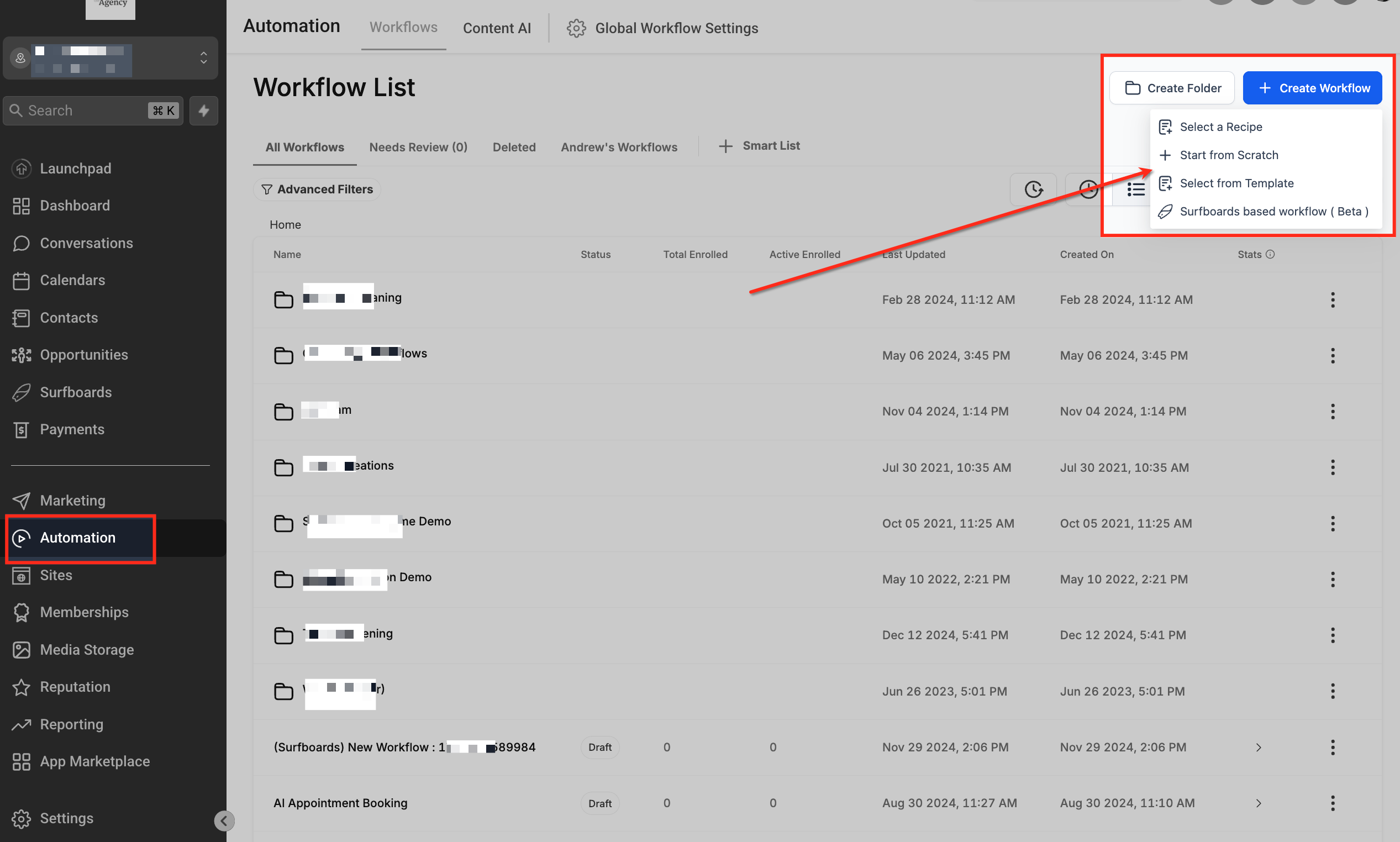
Navigate to Automation > Workflows in the left menu, then click + Create Workflow in the top right. From the dropdown, select Start from Scratch to begin building a custom workflow from the ground up.
Select Trigger Type #
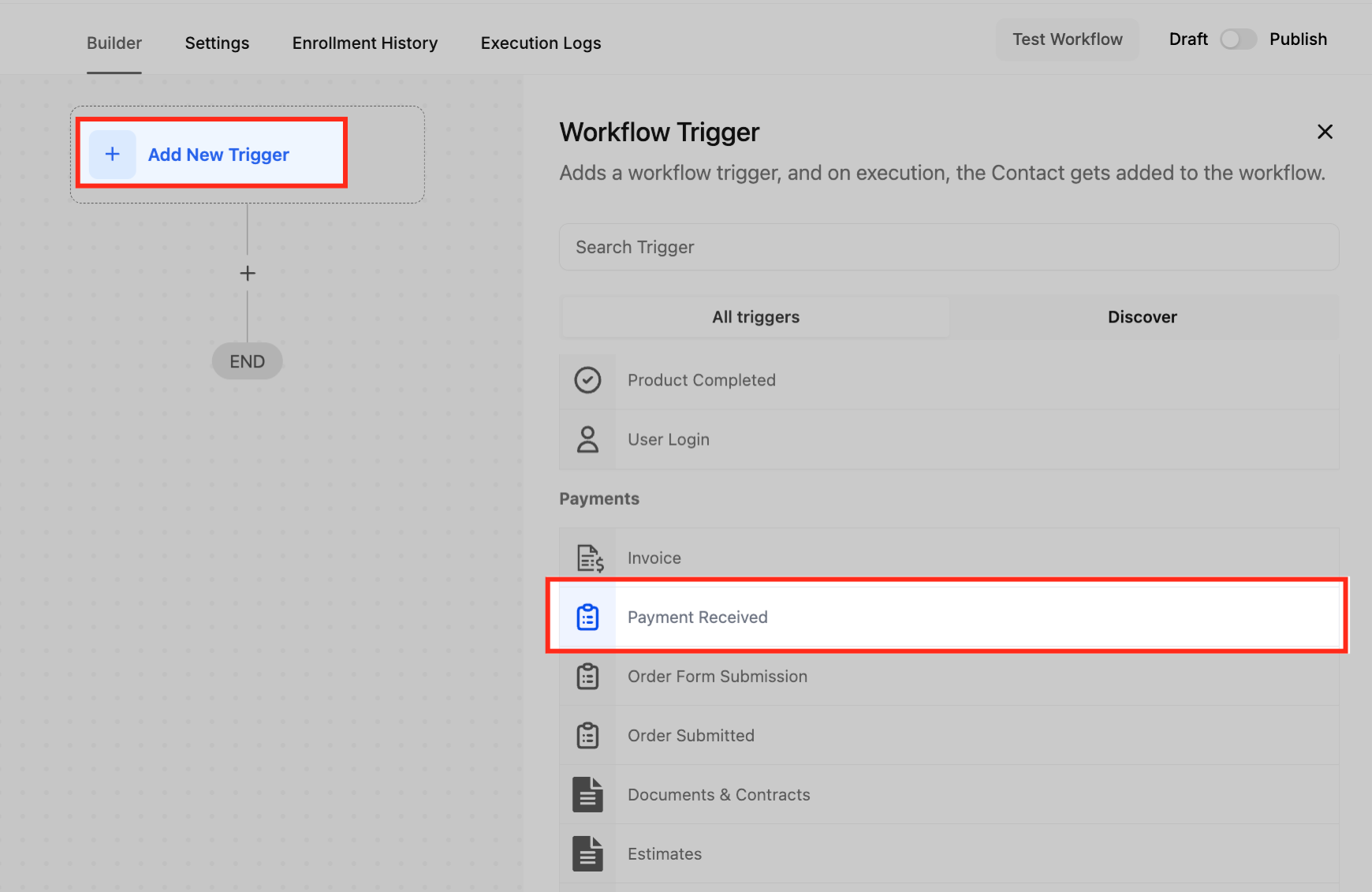
Click + Add New Trigger to open the trigger options. Scroll to the Payments section and choose Payment Received to begin building your payment automation.
Name Your Trigger #
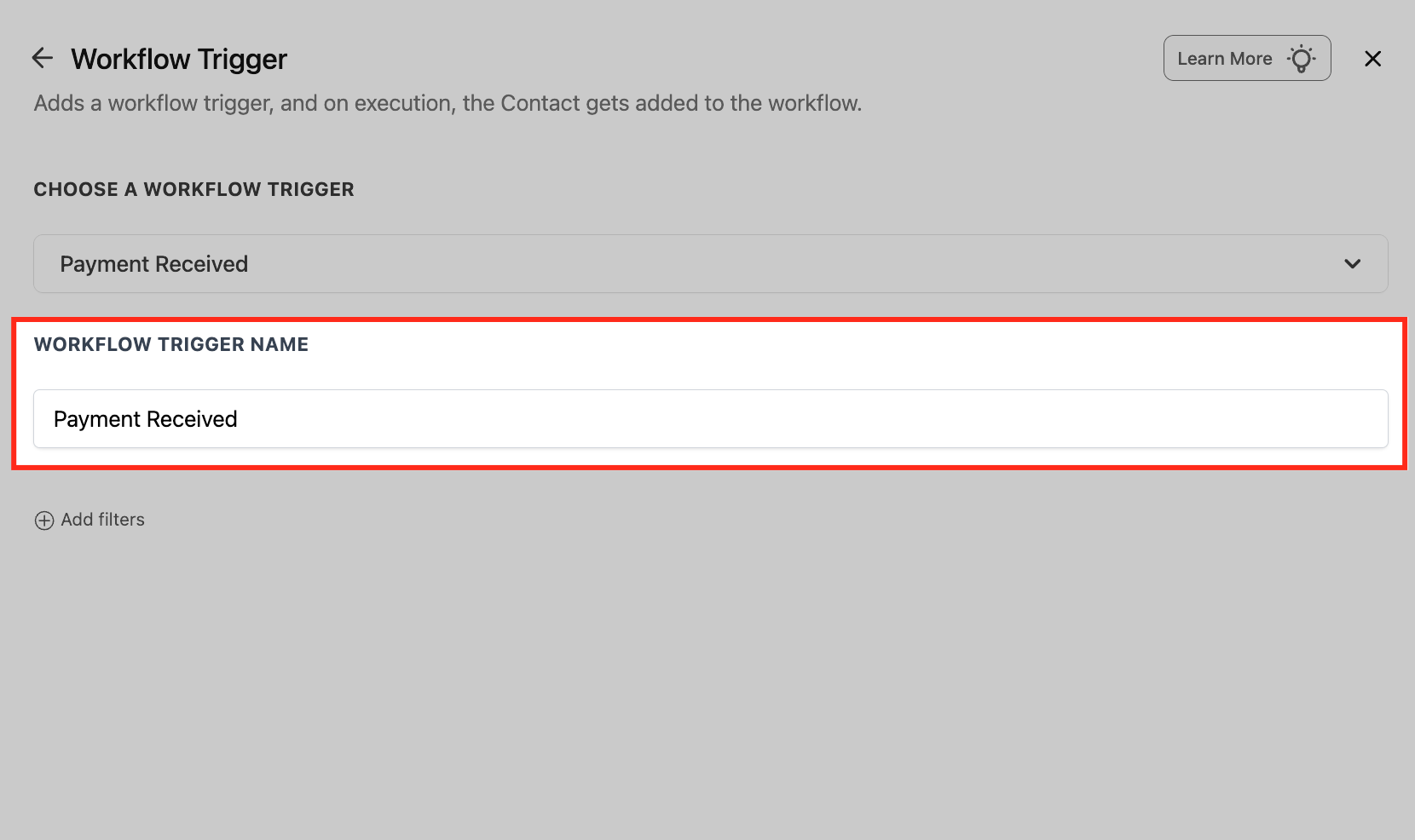
Enter a clear and descriptive name for your trigger (e.g., “Payment for Course Access”). Naming helps keep workflows organized and easily identifiable, especially when using multiple payment triggers.
Add Filters #
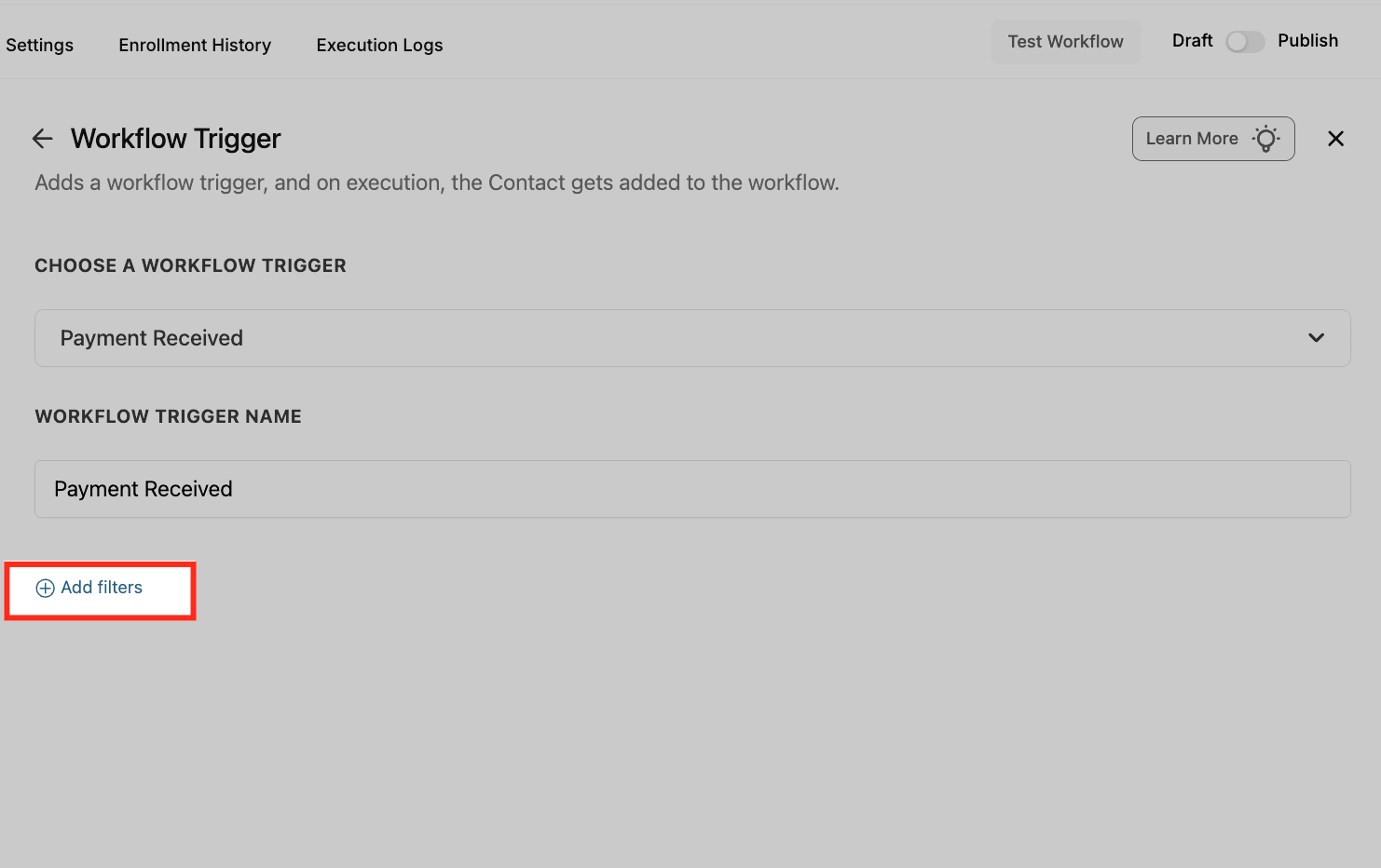
Click + Add filters to narrow down which payment events trigger this workflow. Filters allow you to target specific transaction types, sources, products, or statuses.
- Source Filter: Specify where the payment originated. This helps tailor automation based on the payment channel used.
- Calendar: Payment received from a calendar appointment booking.
- External: Payment made through third-party sources like Stripe, PayPal, or external API integrations.
- Form: Payment submitted through a form that includes a payment element.
- Funnel: Payment made through a funnel page, such as a one-step or two-step order form.
- Invoice: Payment completed via an invoice sent through HighLevel’s invoicing feature.
- Manual Payment: A payment recorded manually inside the CRM.
- Memberships: Payment triggered by access to a membership product or course.
- Website: Payment made through the e-commerce Storefront (Products or Subscriptions).
Choose Filter Criteria #
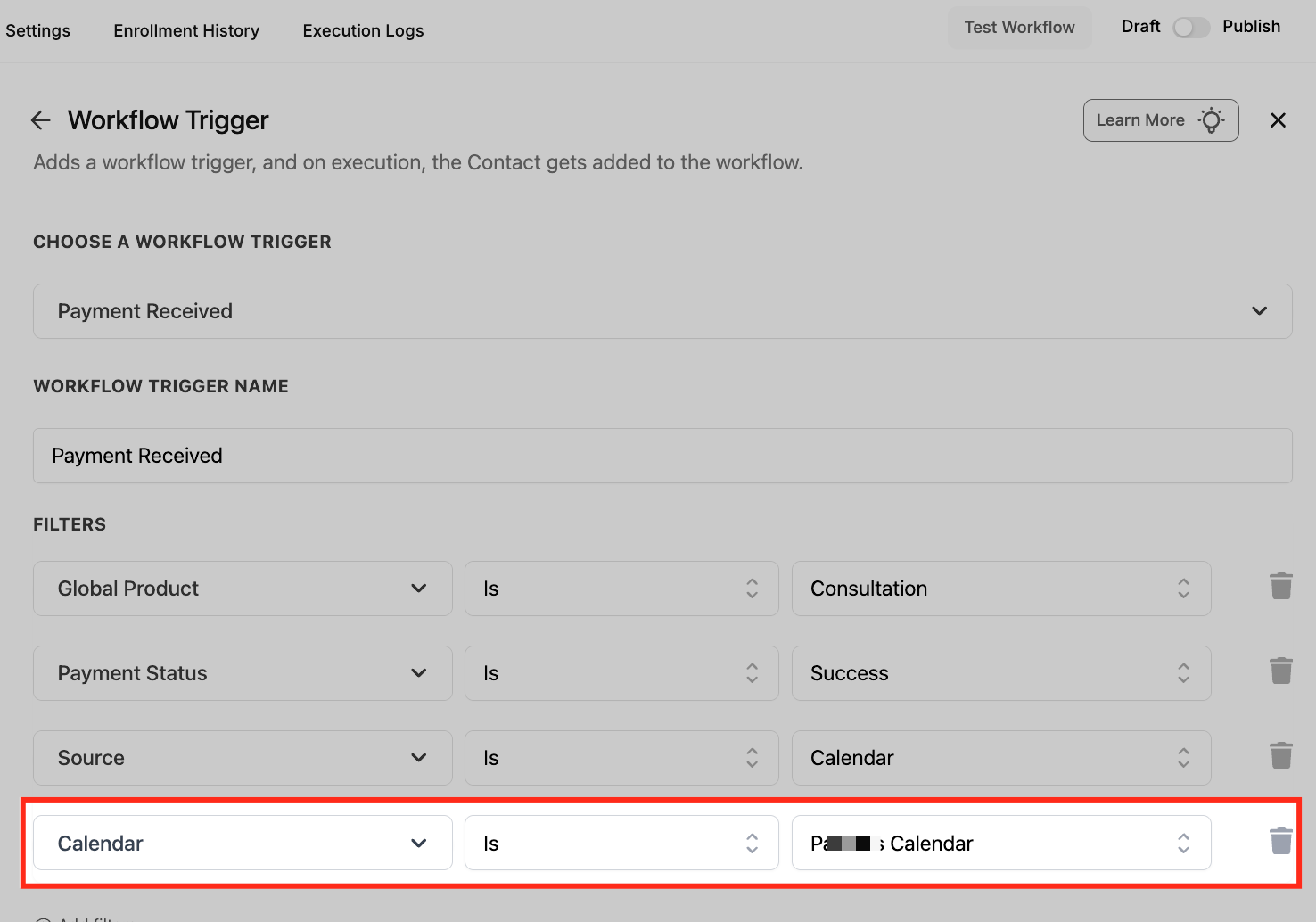
Select from available standard fields like Global Product, Payment Status, or Source. These filters help you target specific types of transactions for precise workflow control.
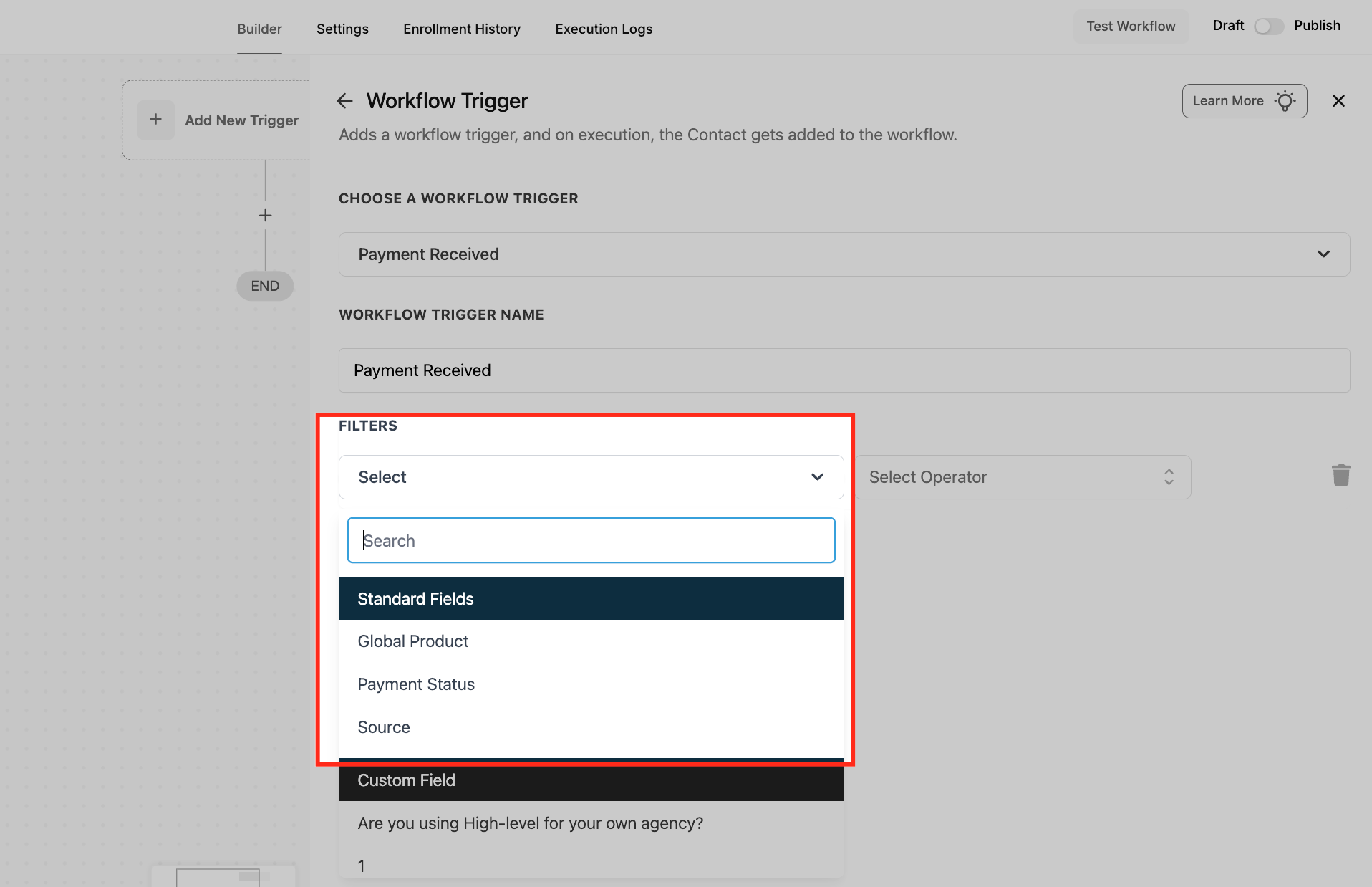
Filter by Product #
Choose Global Product as your filter type and select the specific product name. This ensures the workflow only triggers when a payment is received for that exact product.
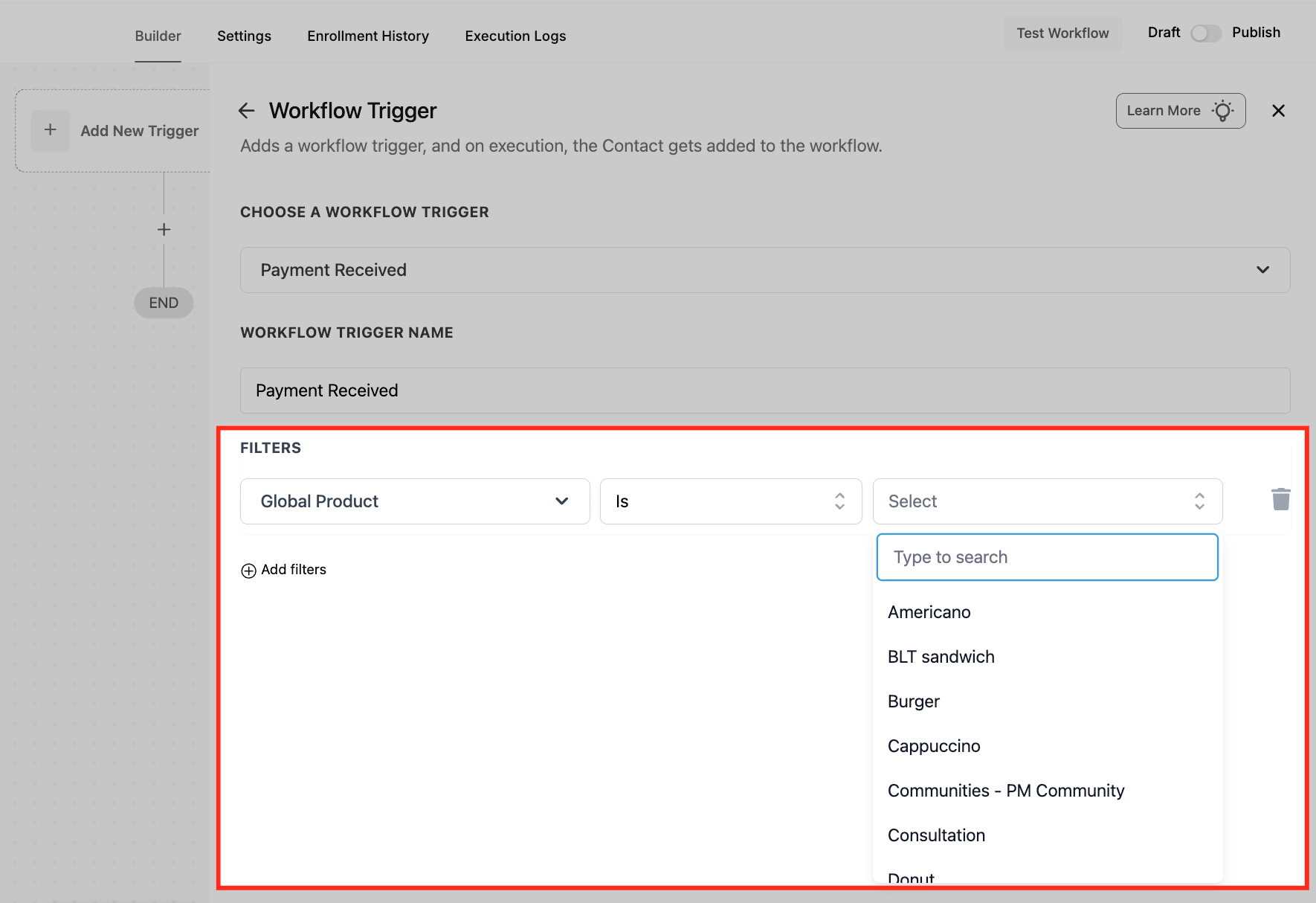
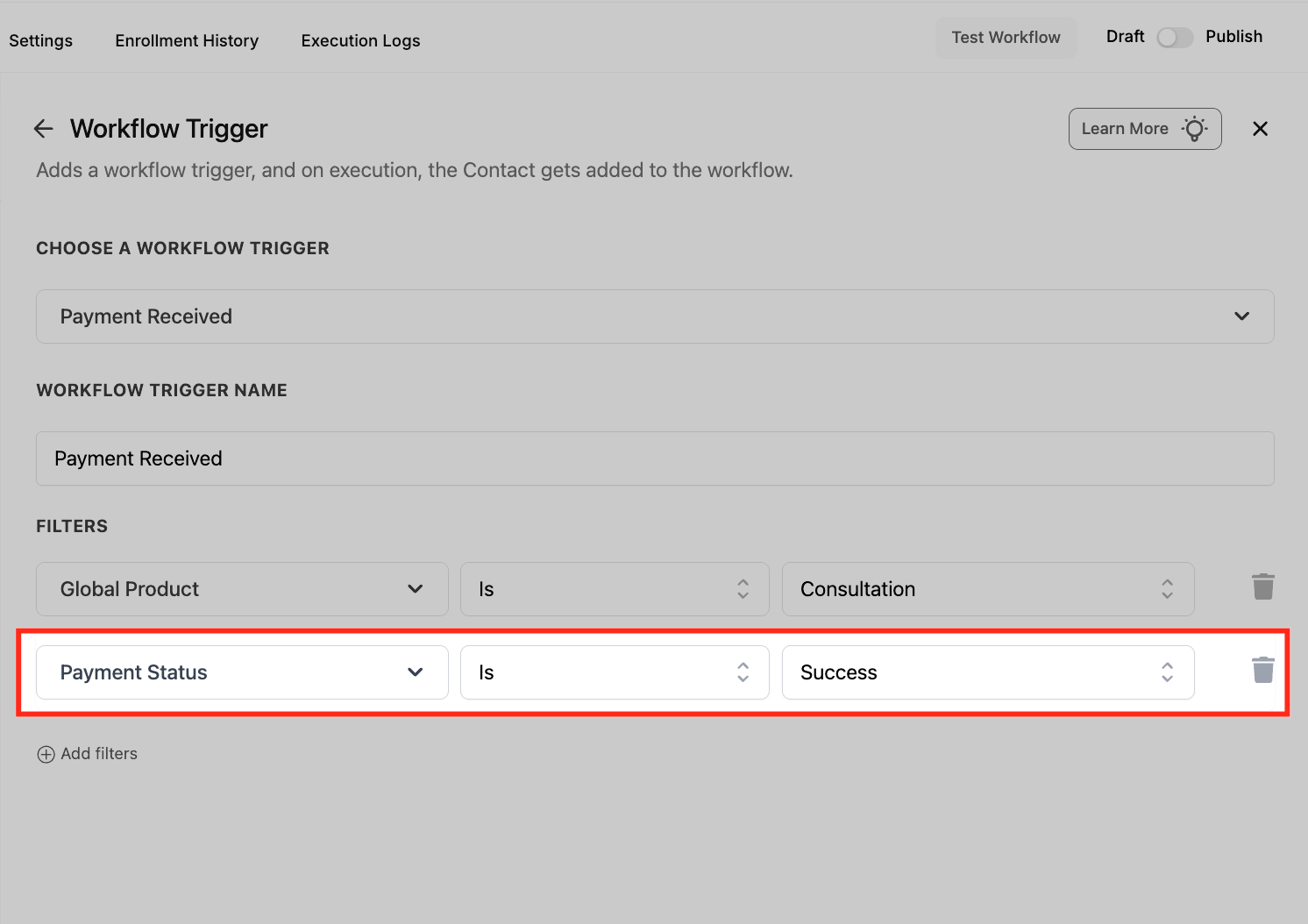
Filter by Payment Status #
Add a Payment Status filter and set it to Success. This ensures the workflow only runs when a payment is successfully completed.
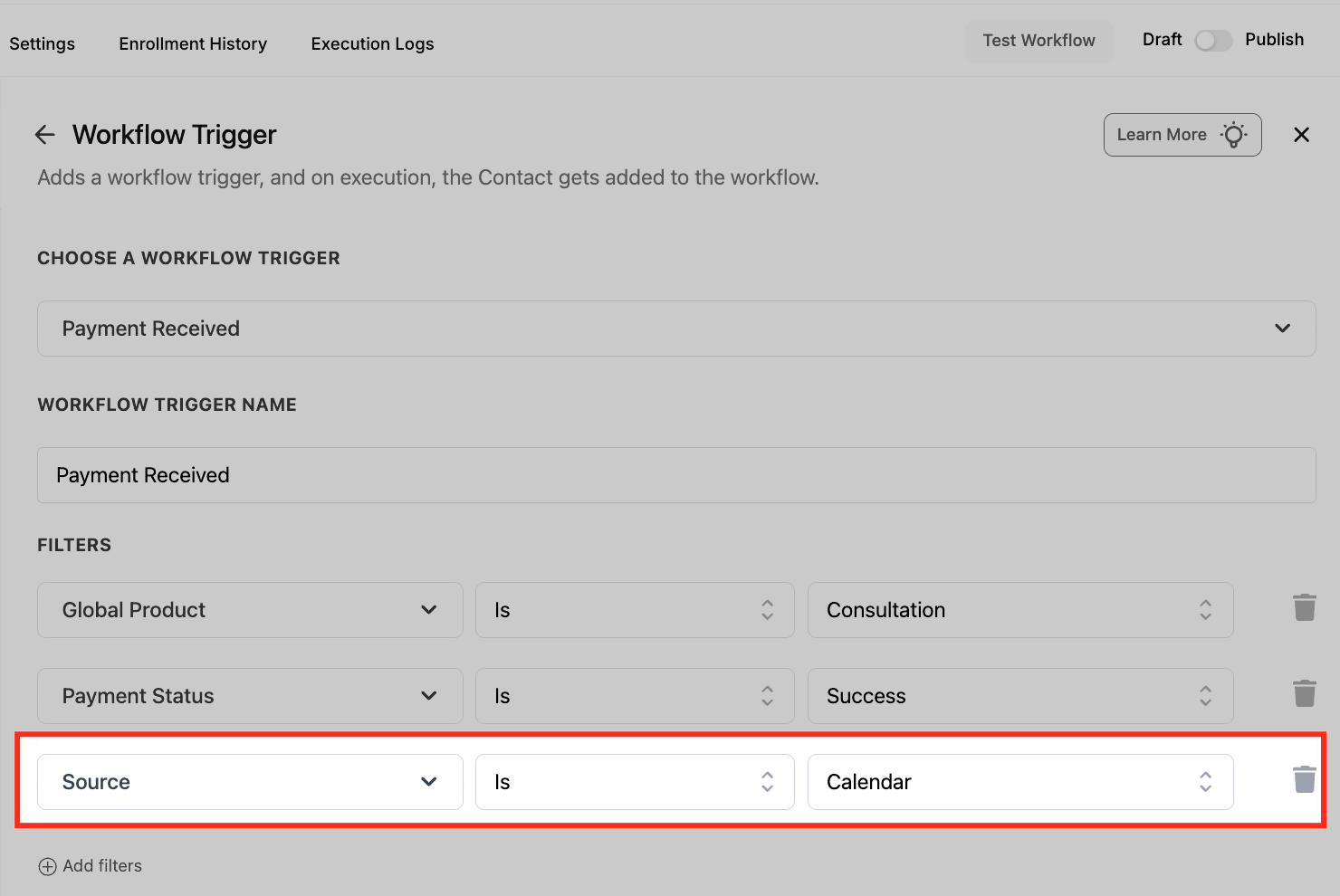
Filter by Source #
Add the Source filter and set it to Calendar. This restricts the trigger to only activate for payments made through calendar-based bookings.
Specify Calendar #
Use the Calendar filter to select the exact calendar (e.g., “Pat’s Calendar”). This adds another layer of precision by tying the workflow to a specific booking calendar.
Save the Trigger #
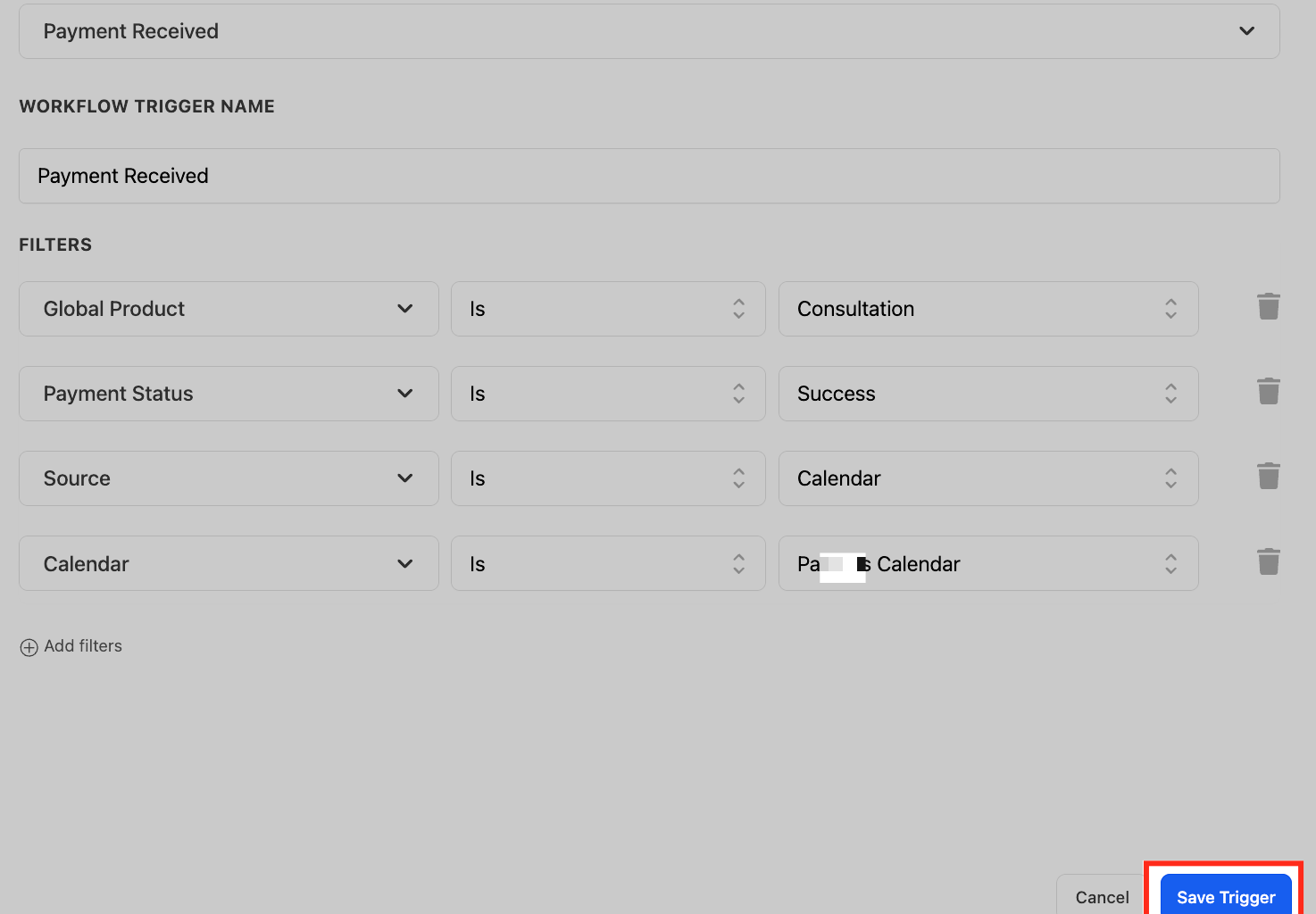
Once all filters are applied, click Save Trigger to finalize your configuration. This locks in your criteria so the workflow only activates under the defined conditions.
Frequently Asked Questions #
Q: Can I filter by product or membership plan?
Yes, use the Source and Sub-Source filters to pinpoint payments from specific funnels, calendars, or memberships.
Q: Can this trigger failed payments too?
Absolutely! Use the “Payment Status = Failed” filter to create follow-up workflows for retries or dunning emails.
Q: Can I use Custom Values (like payment amount)?
Yes, you can use dynamic fields like {{Payment Amount}}, {{Transaction ID}}, and others in emails or internal notifications.
Q: How do I test the trigger?
Use sandbox payment environments or process a real payment with test products. Make sure your workflow is activated before testing.
Q: Can I combine this with other triggers?
Yes! You can include multiple triggers in a single workflow or use If/Else branches to split logic based on payment source or result.

