
The Quick Campaign Actions feature makes it easy to manage affiliates directly from the Affiliate List Page — without needing to open each profile. You can instantly add, remove, move or suspend affiliates from specific campaigns, helping you stay organized and in control of your affiliate program.
Adding an Affiliate to a Campaign #
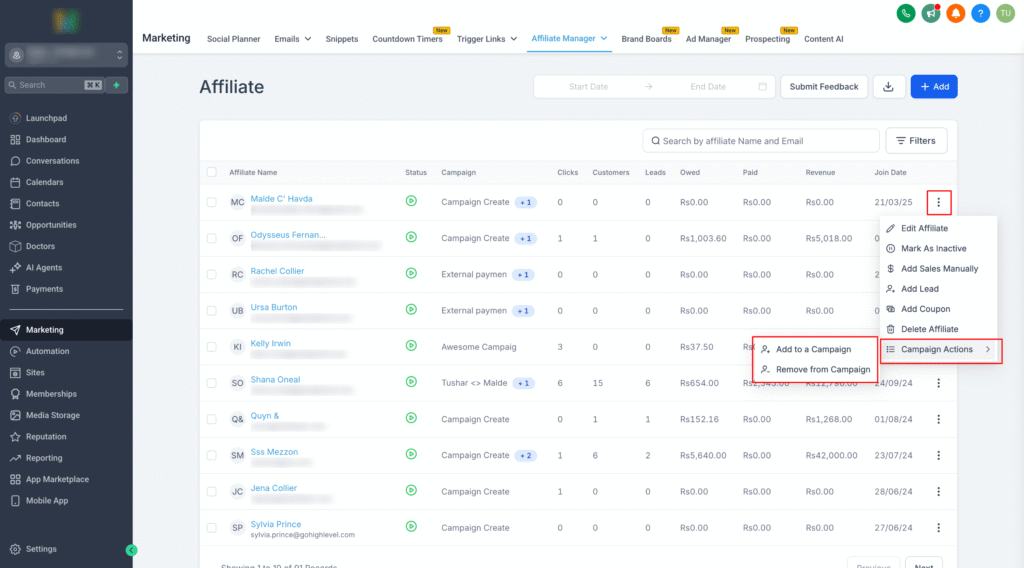
Step 1: Open Affiliate Manager and go to the Affiliate List Page #
Step 2: Locate the affiliate and click the three-dot menu next to their name #
Step 3: Click Campaign Actions → Add to Campaign #
Step 4: Choose the campaign from the pop-up list #
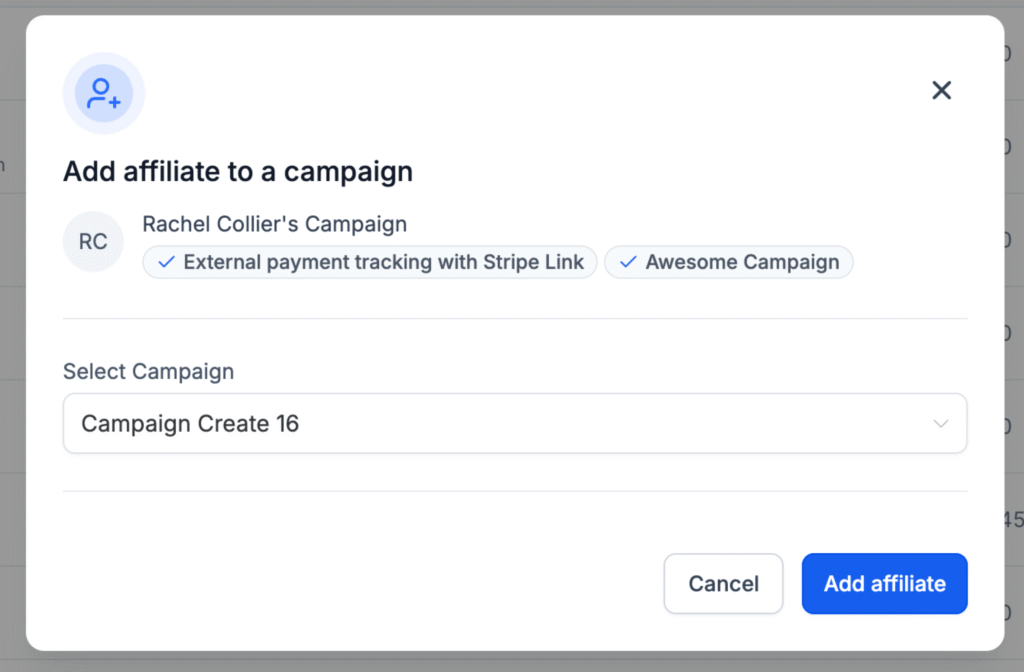
Step 5: Click Confirm to save the changes #
Removing an Affiliate from a Campaign #
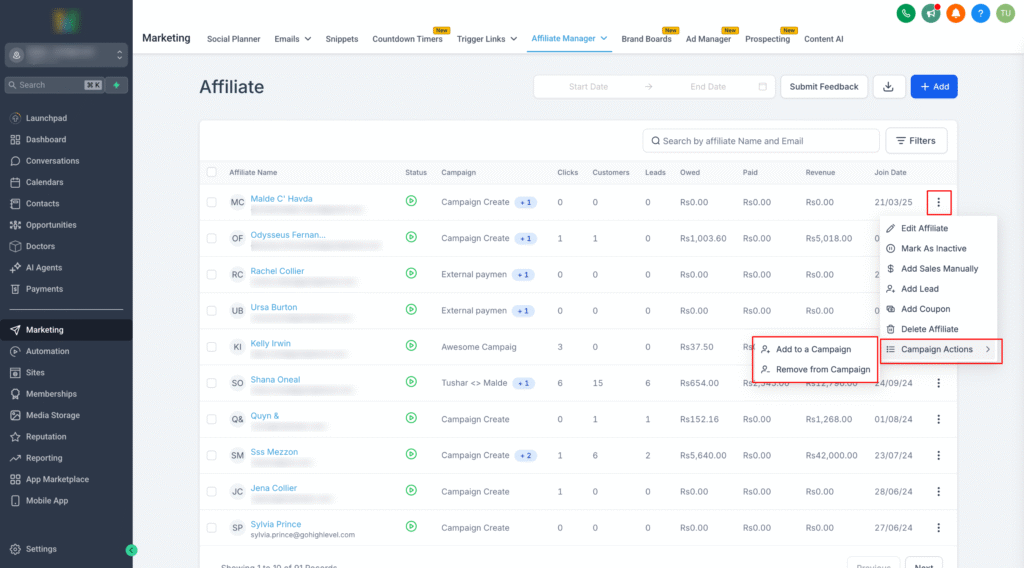
Step 1: On the Affiliate List Page, click the three-dot menu next to the affiliate’s name #
Step 2: Select Campaign Actions → Remove from Campaign #
Step 3: Pick the campaign from which you want to remove the affiliate #
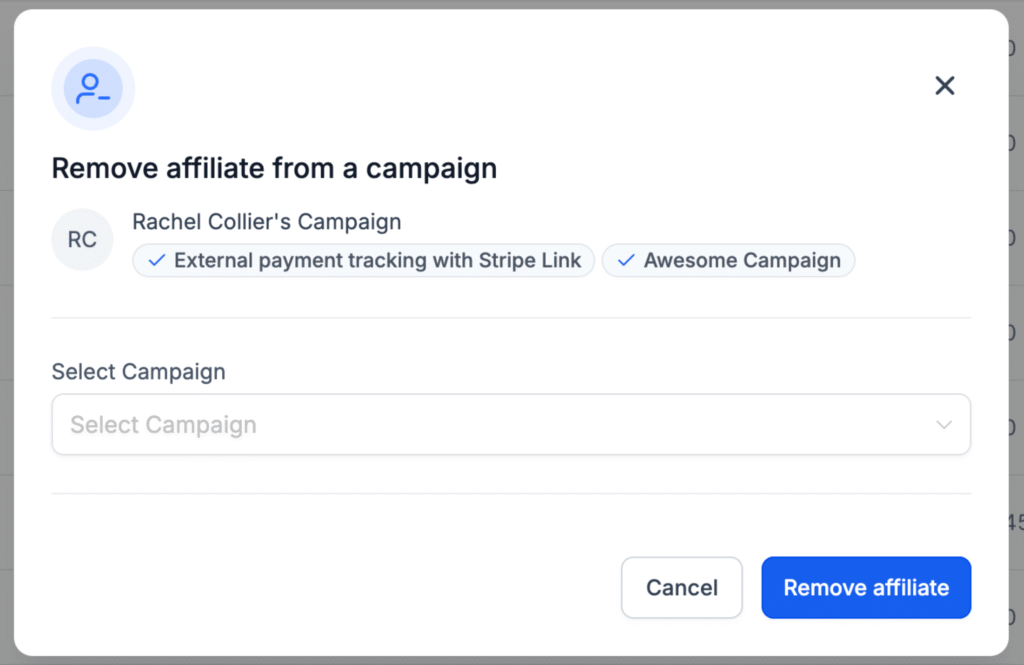
Step 4: Click Confirm #
Suspending an Affiliate from a Campaign #
Step 1: Open Affiliate Manager and go to the Affiliate List Page #
Step 2: Locate the affiliate and click the three-dot menu next to their name #
Step 3: Click Campaign Actions → Suspend Affiliate #
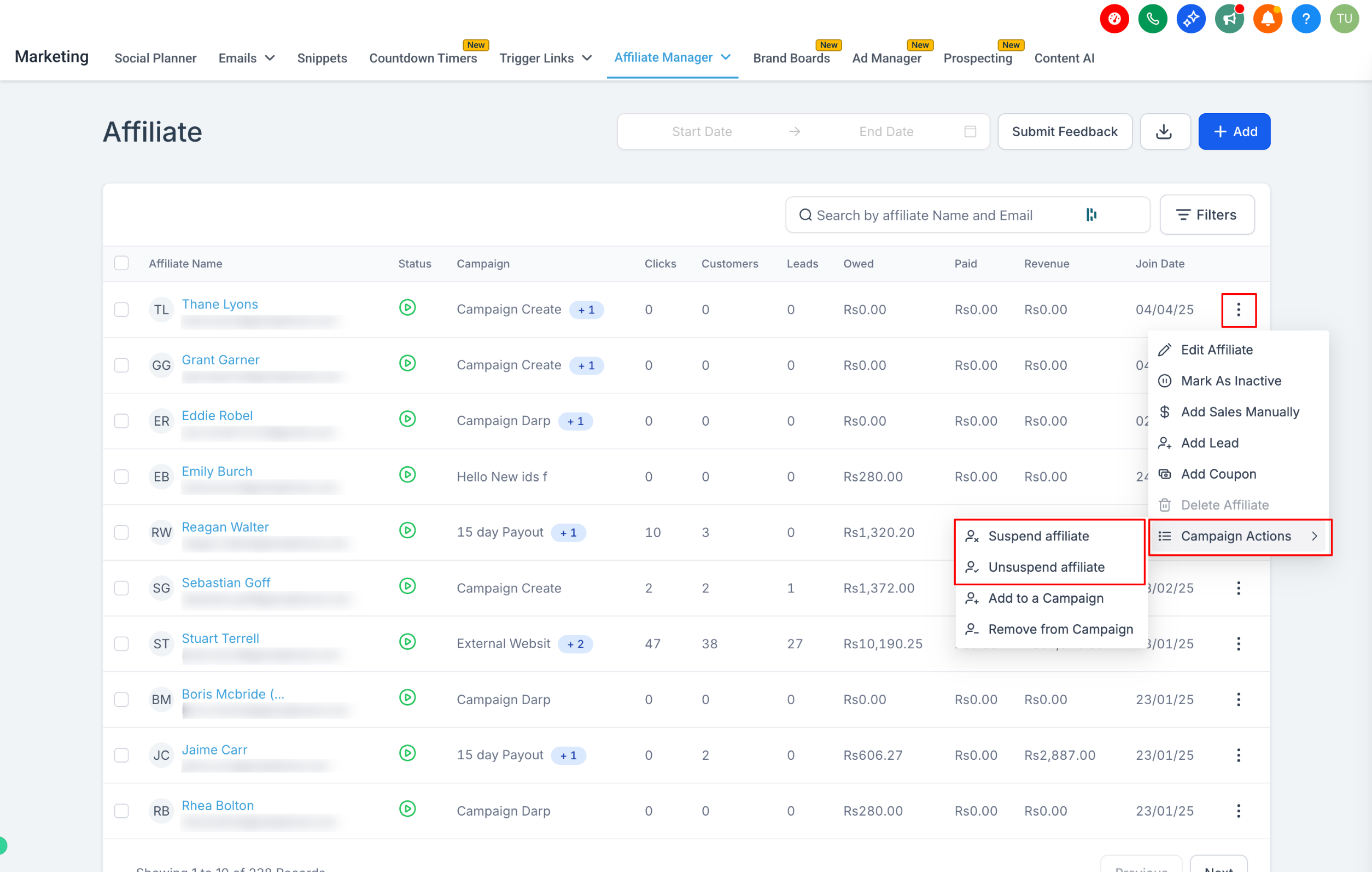
Step 4: Choose the campaign you’d like to suspend them from. #
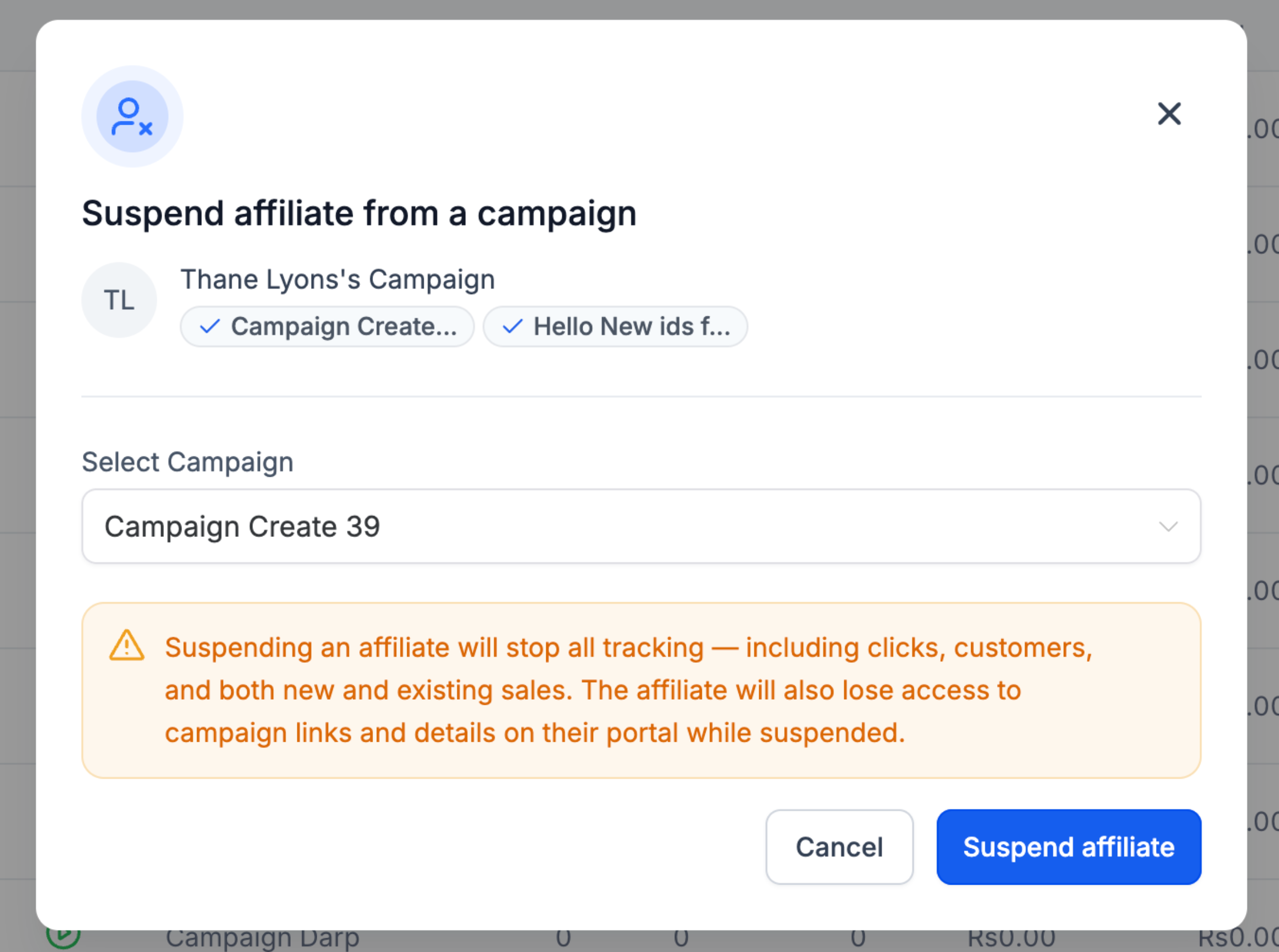
Step 5: To Unsuspend, follow the same steps. #
Important Notes:
- While suspended: You cannot manually add leads, assign commissions, or import past activity for the affiliate.
- Once unsuspended: The affiliate’s existing links will start working again automatically.
Moving an Affiliate to another Campaign #
Step 1: Open Affiliate Manager and go to the Affiliate List Page #
Step 2: Locate the affiliate and click the three-dot menu next to their name #
Step 3: From the Campaign Actions menu, choose “Move to Campaign.” #
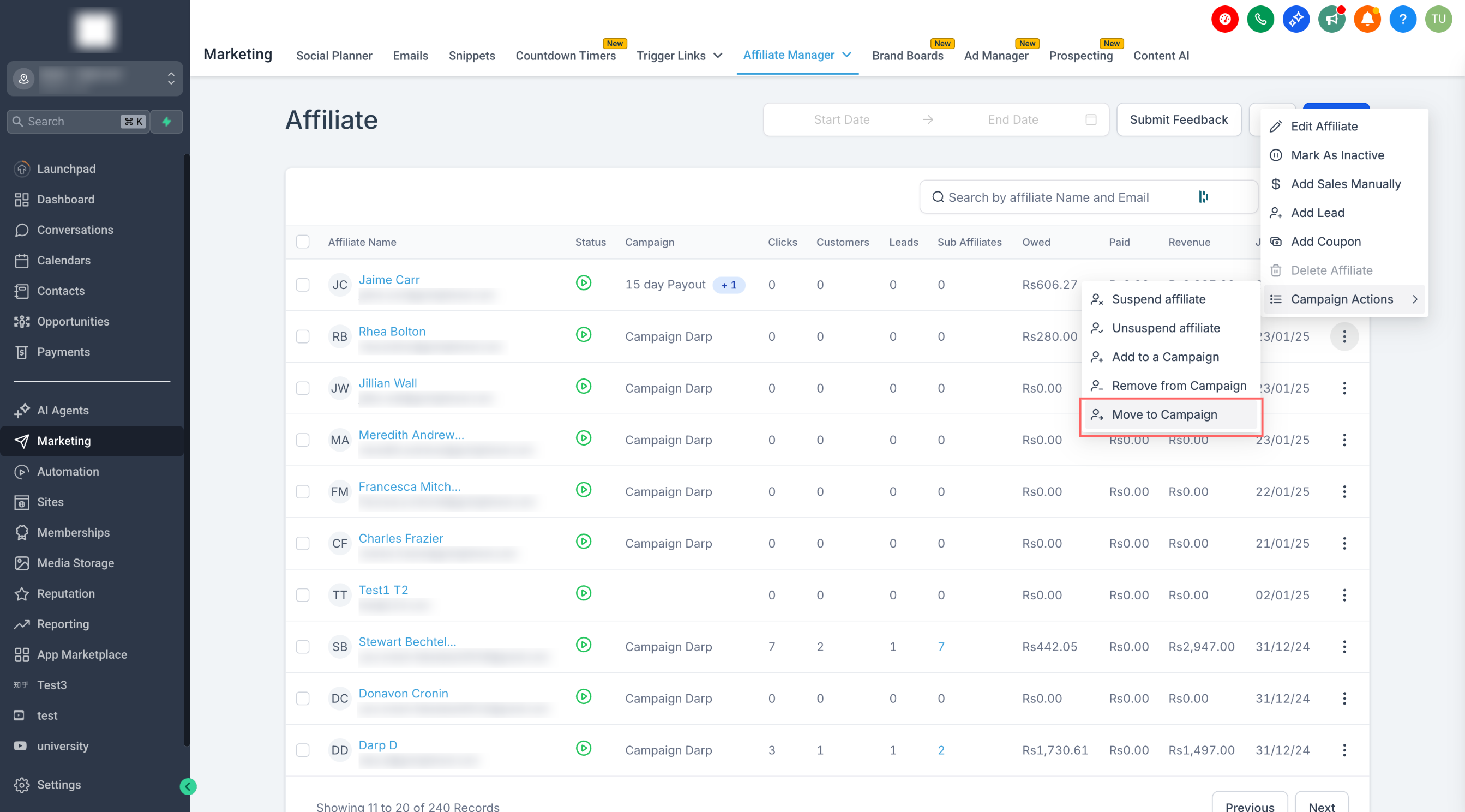
Step 4: Select the campaign where you want to move the affiliate. #
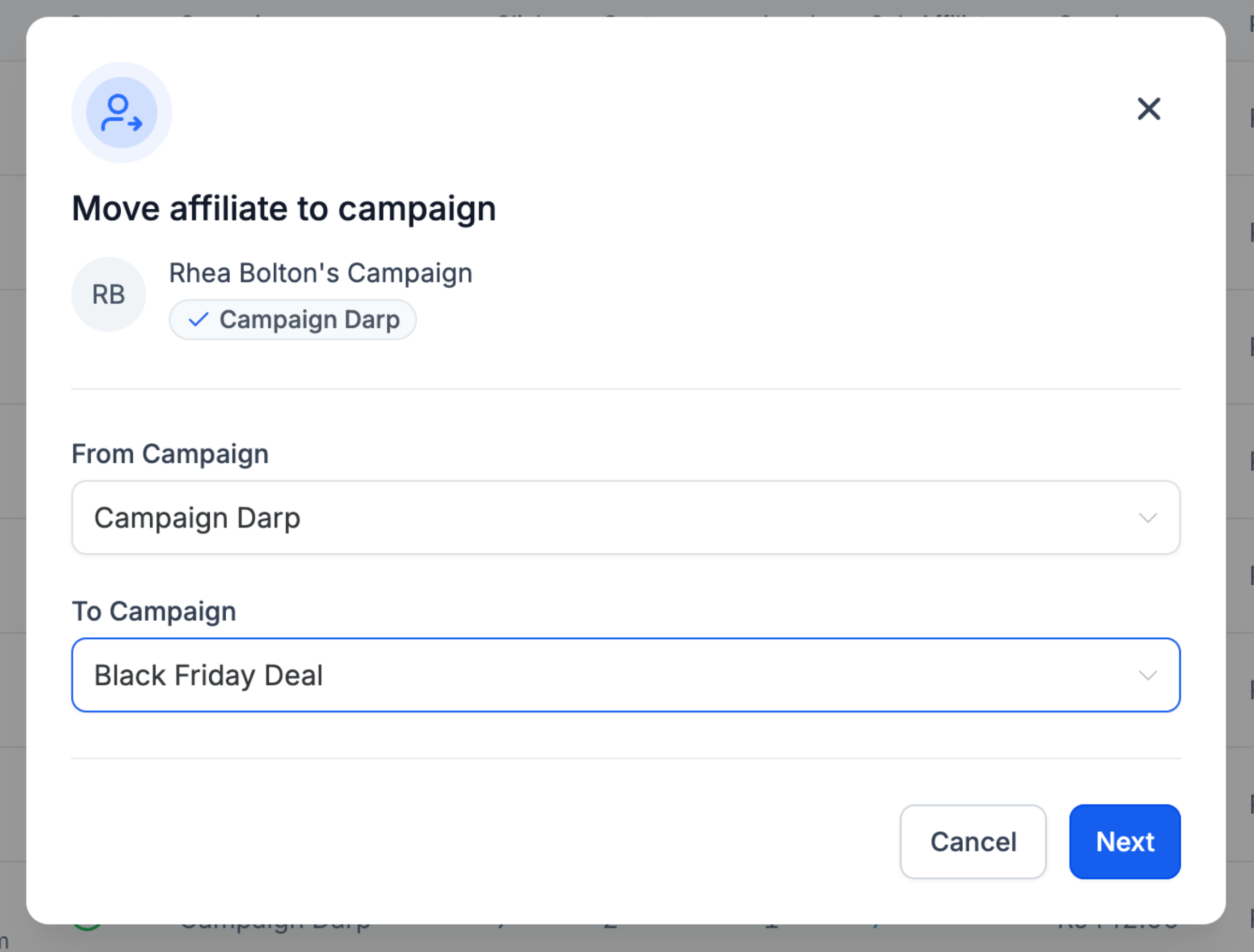
Step 5: Decide what to do with existing customers #
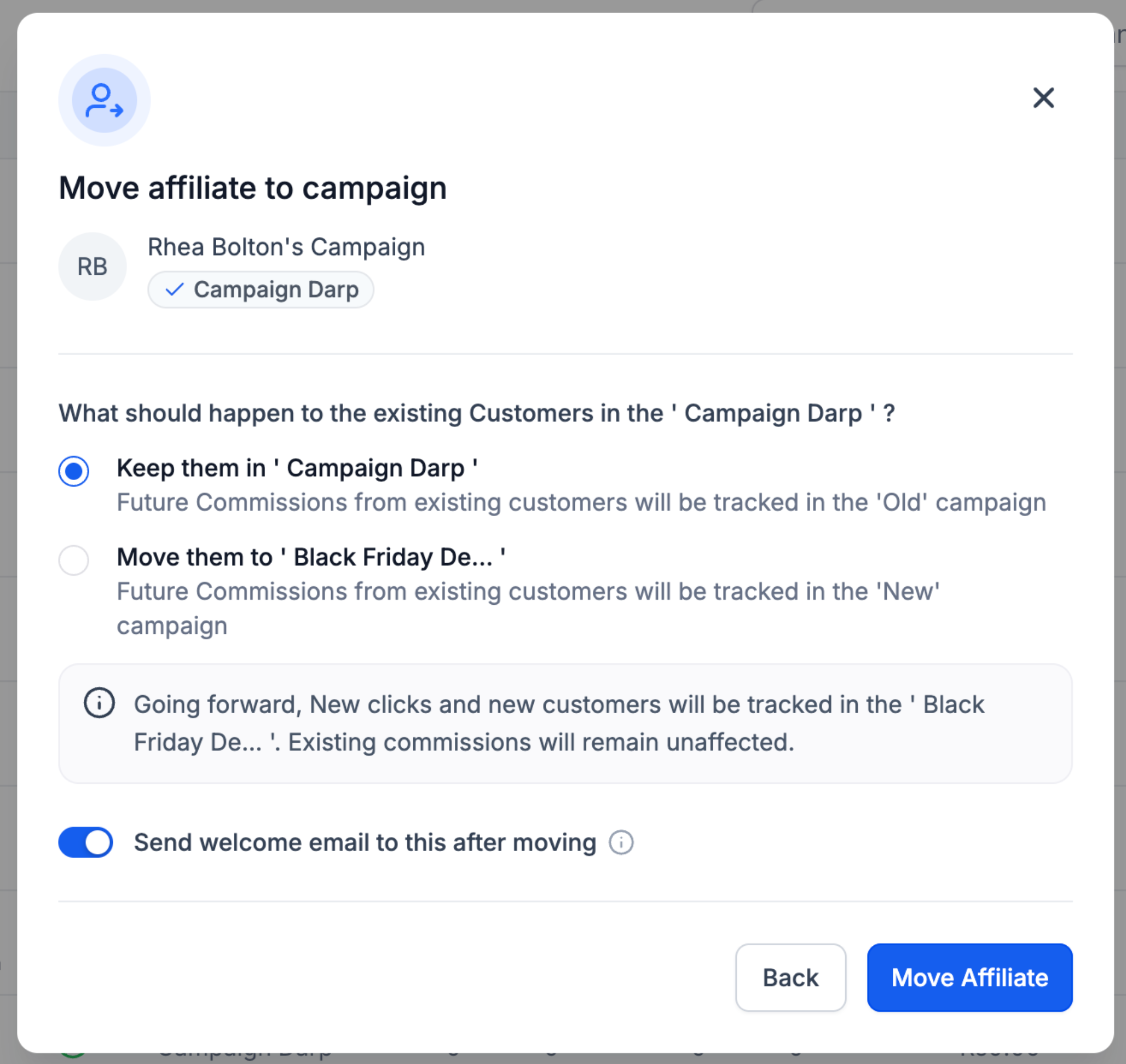
The two options are:
- Keep them in the old campaign: Existing customers and their recurring commissions will stay under the current campaign.
- Move them to the new campaign: Future commissions from existing customers will now follow the new campaign’s rules.
Step 6: Choose whether to send the welcome email #
If the target campaign has welcome emails disabled, no email will be sent even if this is turned on.

If the campaign has welcome emails enabled, you can disable it here to skip sending for this affiliate.

