Overview #
The Cookie Consent Banner in Funnels & Websites helps you manage user consent for cookies. It allows visitors to accept or decline cookies, supporting your efforts to comply with privacy regulations.
Introduction #
This guide will show you how to set up, customize, and manage the Cookie Consent Banner in Funnels & Websites. By following these steps, you can support your compliance program while providing visitors with control over their cookie preferences.
⚠️ Please note that using this tool does not guarantee compliance with any specific law.
Setting Up the Cookie Consent Banner #
1. Enable the Banner #
- Open your funnel or website in the Funnels & Websites Builder.
- Go to the page where you want to enable the banner.
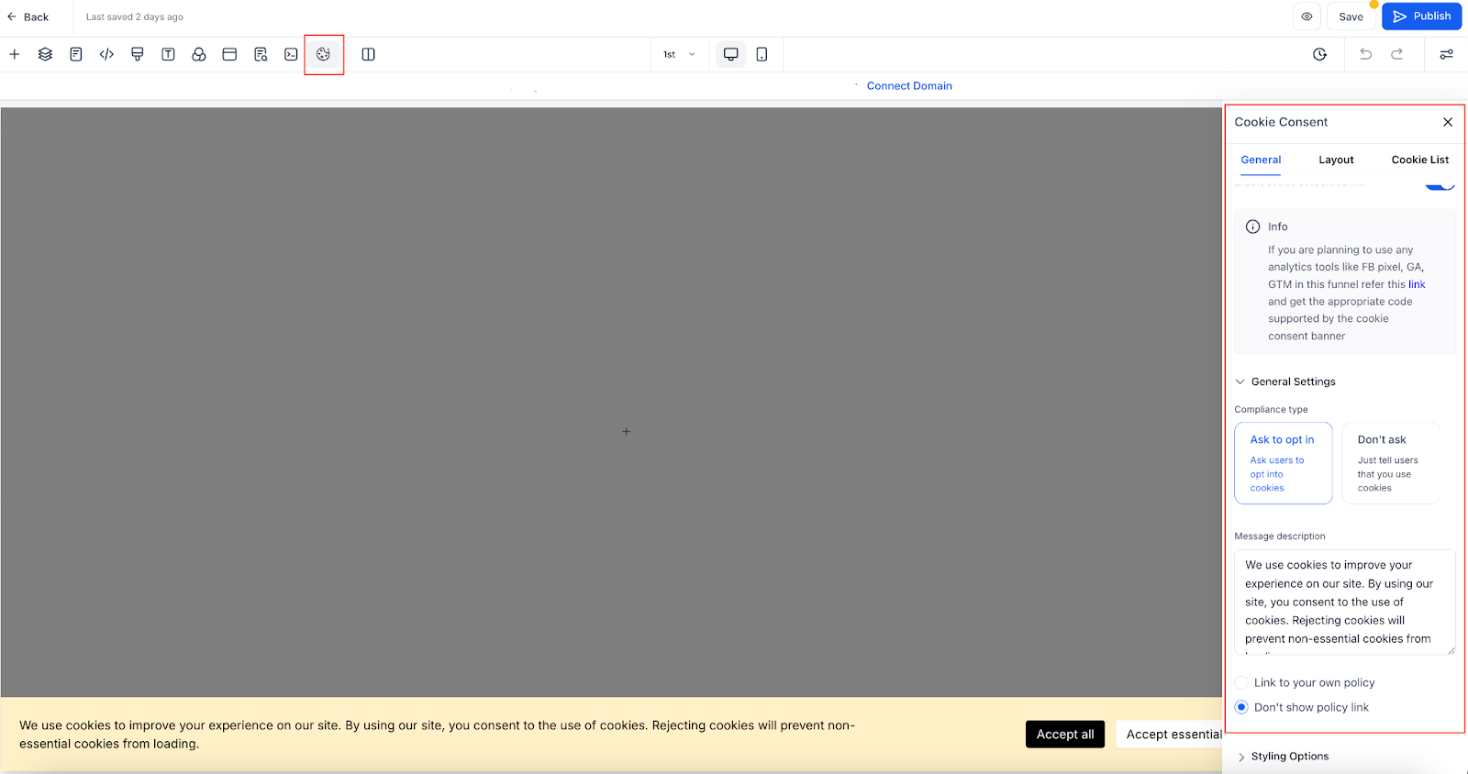
- Click on the Cookie Consent Banner Settings icon.
- Toggle the switch to enable or disable the banner.
2. Configure Button Actions #
- Accept Essential – Accepts only necessary cookies for website functionality.
- Accept All – Accepts all cookies, including tracking and analytics.
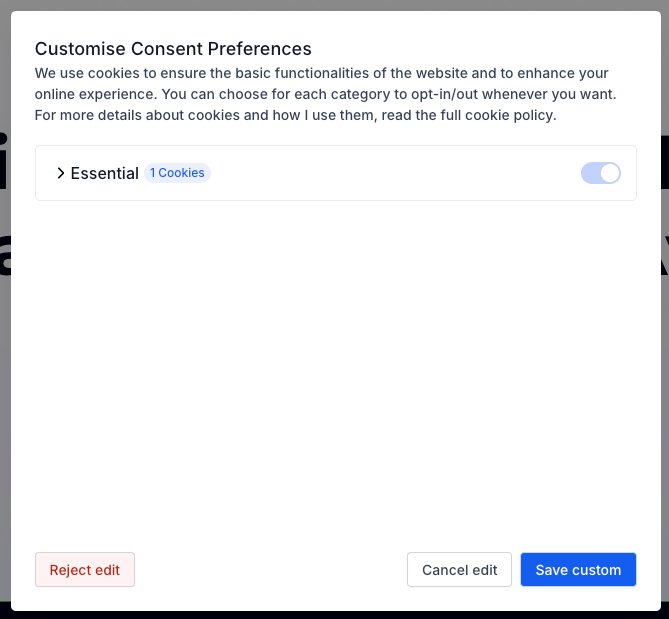
3. Customize Cookie Preferences #
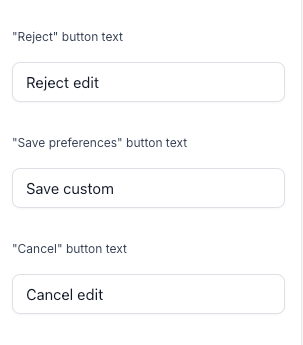
- Reject – Accepts only essential cookies.
- Cancel – Closes the popup and reopens the main banner.
- Save Preferences – Saves the user’s selected cookie settings.

Customizing the Cookie Consent Banner #
General Settings #
- Enable or disable the cookie list.
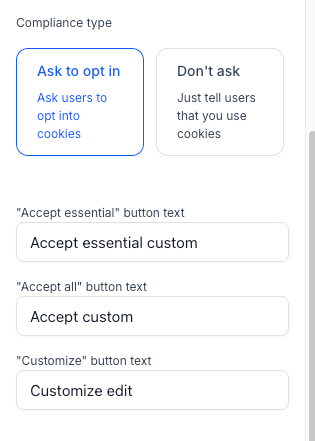
- Choose the compliance type:
- Ask to Opt-In – Displays “Accept Essential” and “Accept All” buttons.
- Don’t Ask – Shows only an “OK” button.
- Add a message description and link to your privacy policy.
- Customize the banner’s appearance: colors, fonts, text size, etc.
Advanced Settings #
- Consent Expiration – Set the number of days before consent needs to be re-asked.
Layout Options #
- Choose different banner display styles to match your site layout and brand.
Customizable Text for Buttons and Popup #
You can now edit the text for all buttons in both the banner and preferences popup to match your brand and localization needs:
Editable Banner Buttons: #
- Accept All
- Accept Essential
- Customize
- OK
Editable Popup Buttons: #
- Reject
- Save Preferences
- Cancel
Important: Once you customize these labels, automatic translations (i18n) are disabled.
You must manually add translations for all supported languages to ensure a consistent multilingual experience.