
What’s New? #
We are excited to introduce Recurring Invoice Generation integrated directly into our 2-in-1 Documents & Contracts feature. This enhancement allows users to automate the creation and management of recurring invoices seamlessly at the time of document signing. Key updates include:
- Automated Settings Drawer: When adding a product list to a new template or document, clicking the product list automatically opens the settings drawer for easy configuration.
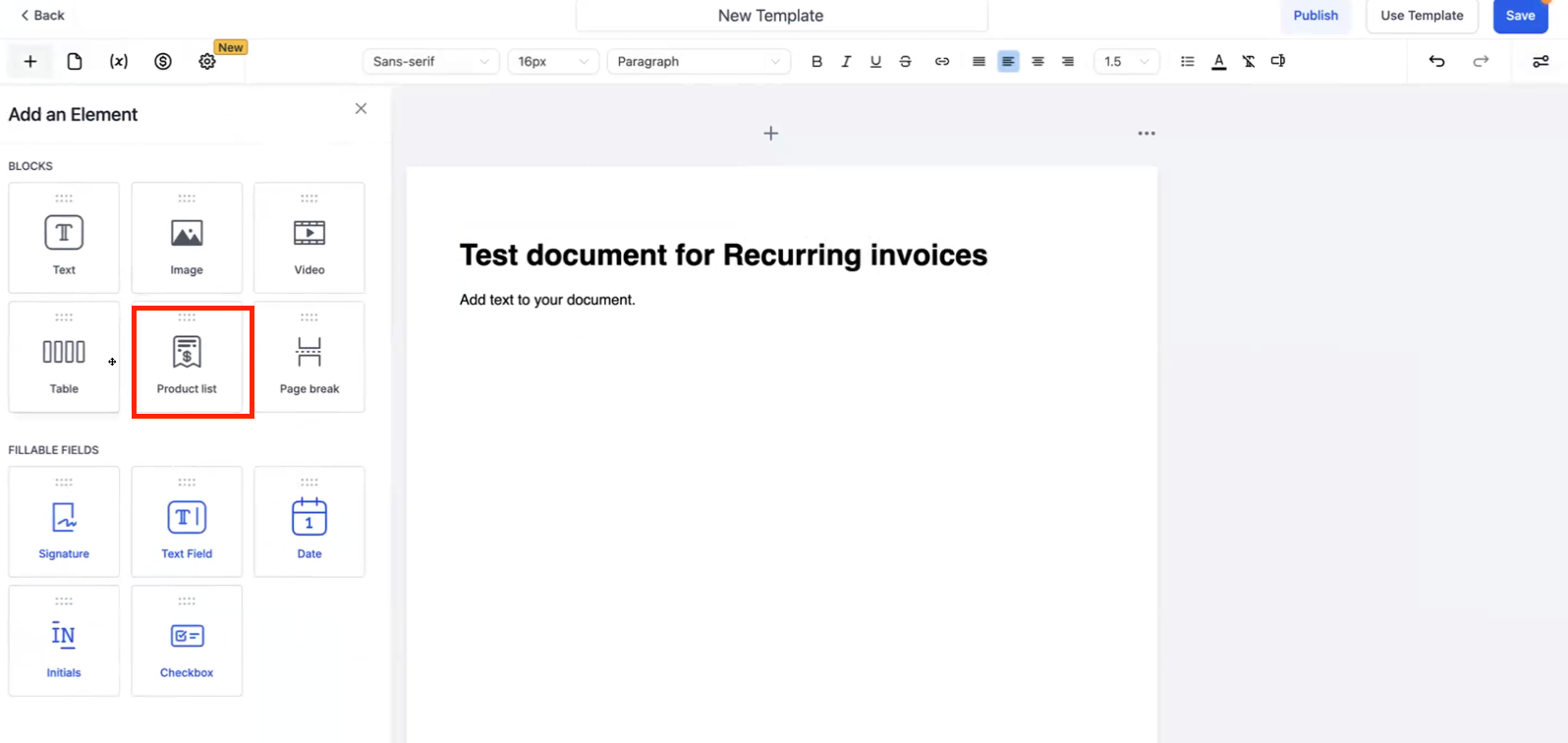
- Automatic Recurring Type Assignment: Adding a recurring product changes its type to recurring automatically.
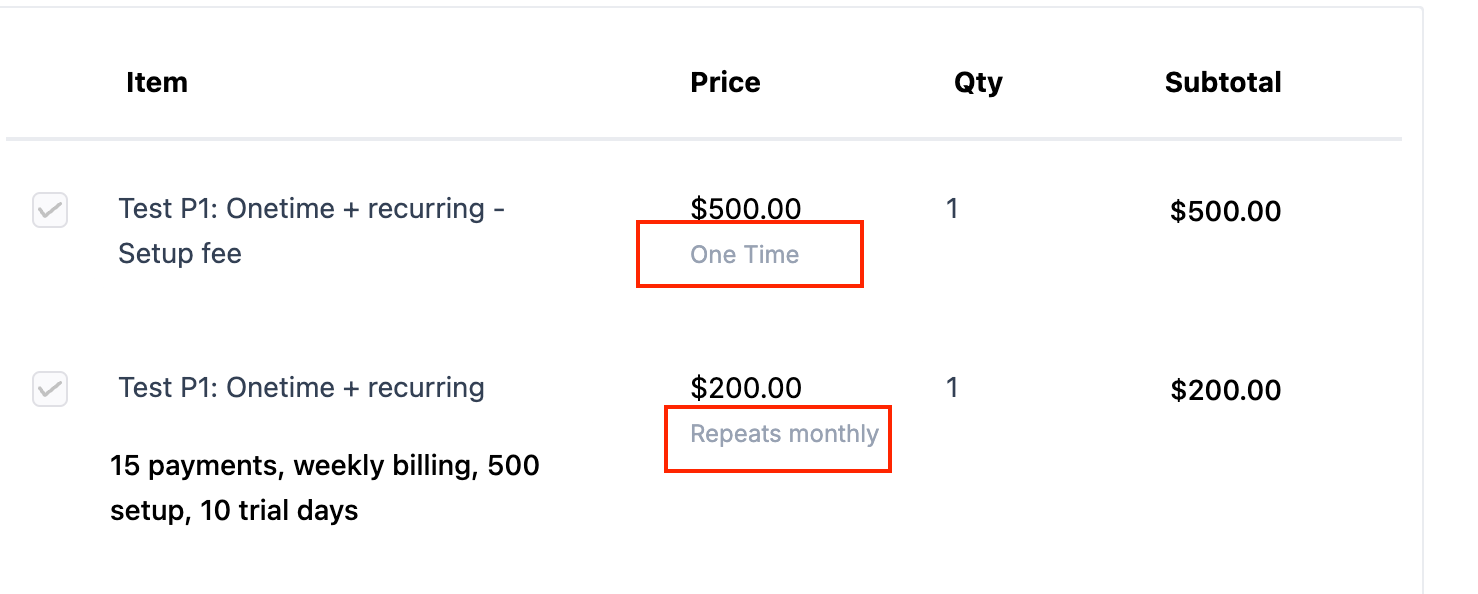
- Price Type Tags: Visual tags indicate whether a product is one-time or recurring, helping users differentiate between pricing types.
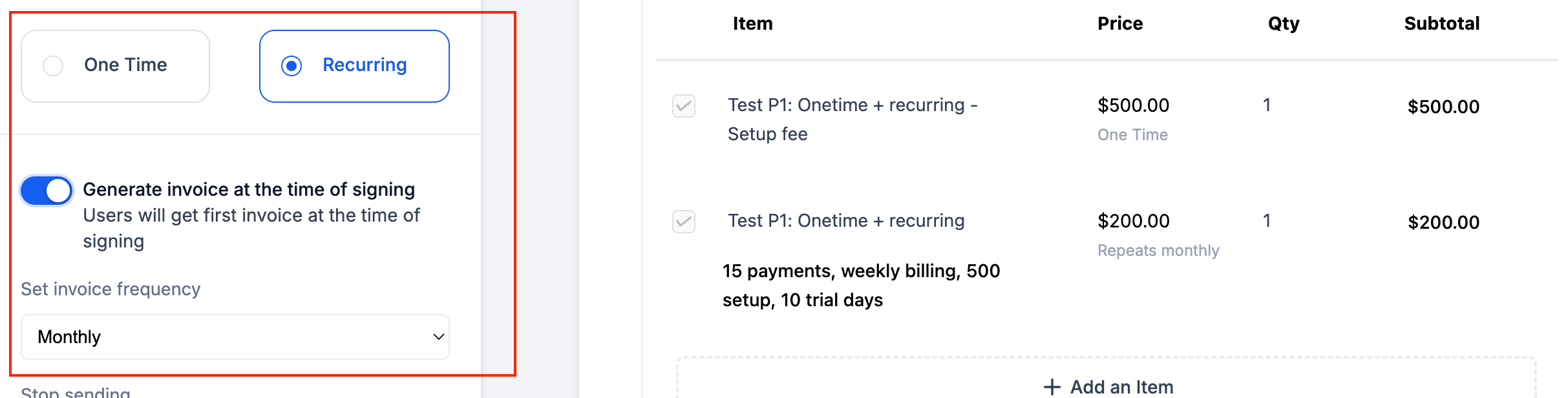
- Flexible Invoice Scheduling: Users can now choose to generate invoices immediately upon signing or based on a fixed schedule relative to the signing date.
How to Use #
For Templates #
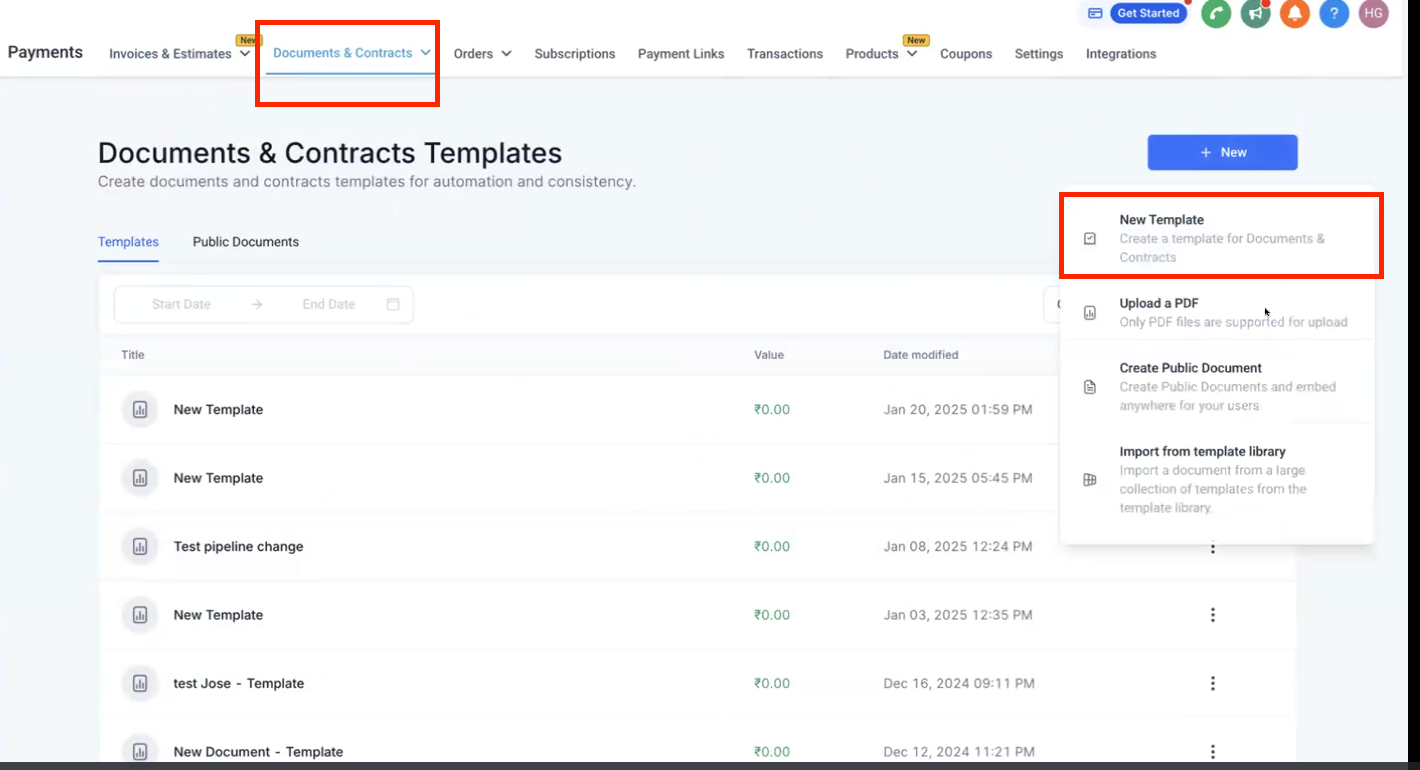
1. Create a New Template:
- Navigate to Payments > Documents & Contracts > Templates > New Template.
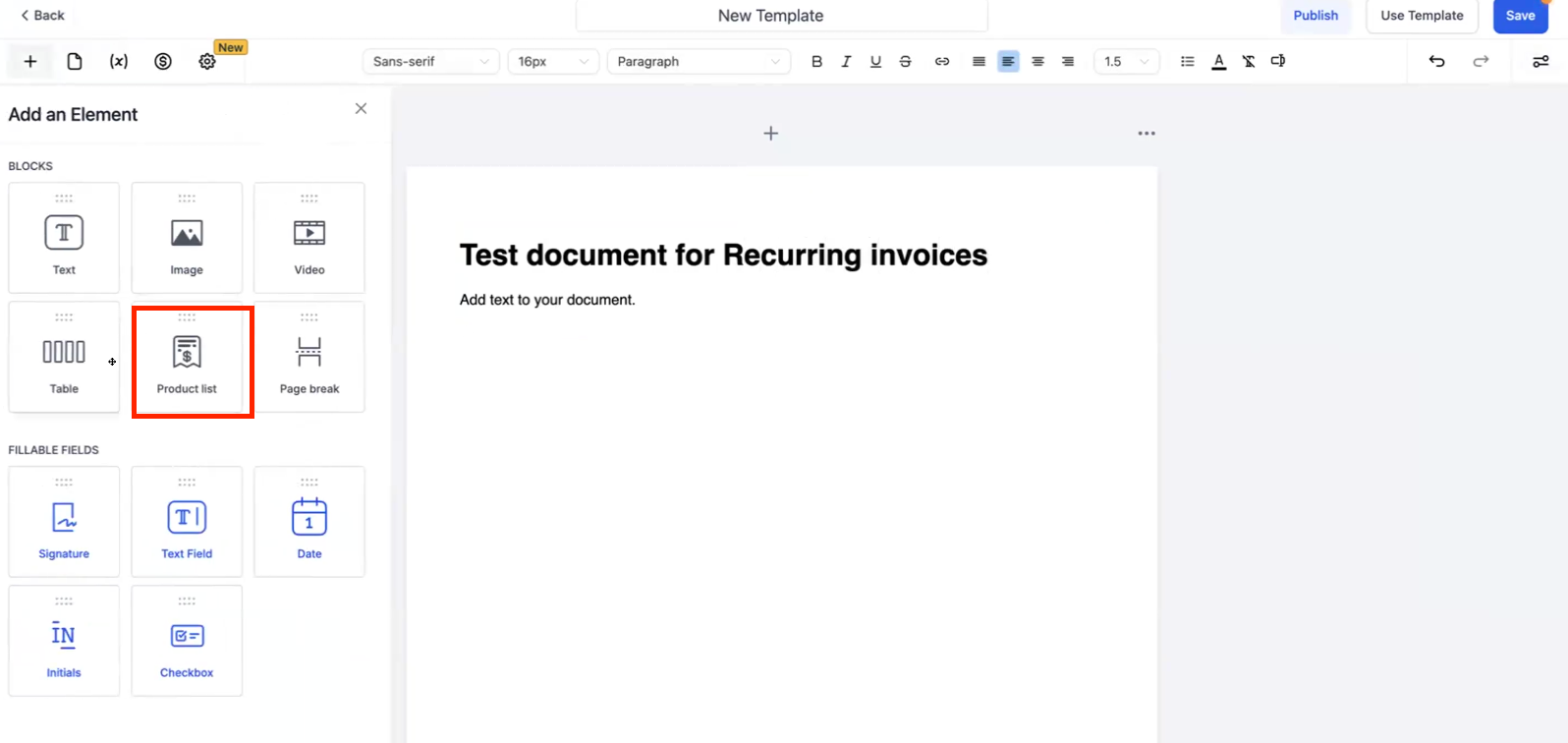
2. Add a Product List and Signature:
- Add a product list to your template.
- Insert a signature element where required.
3. Configure Recurring Products:
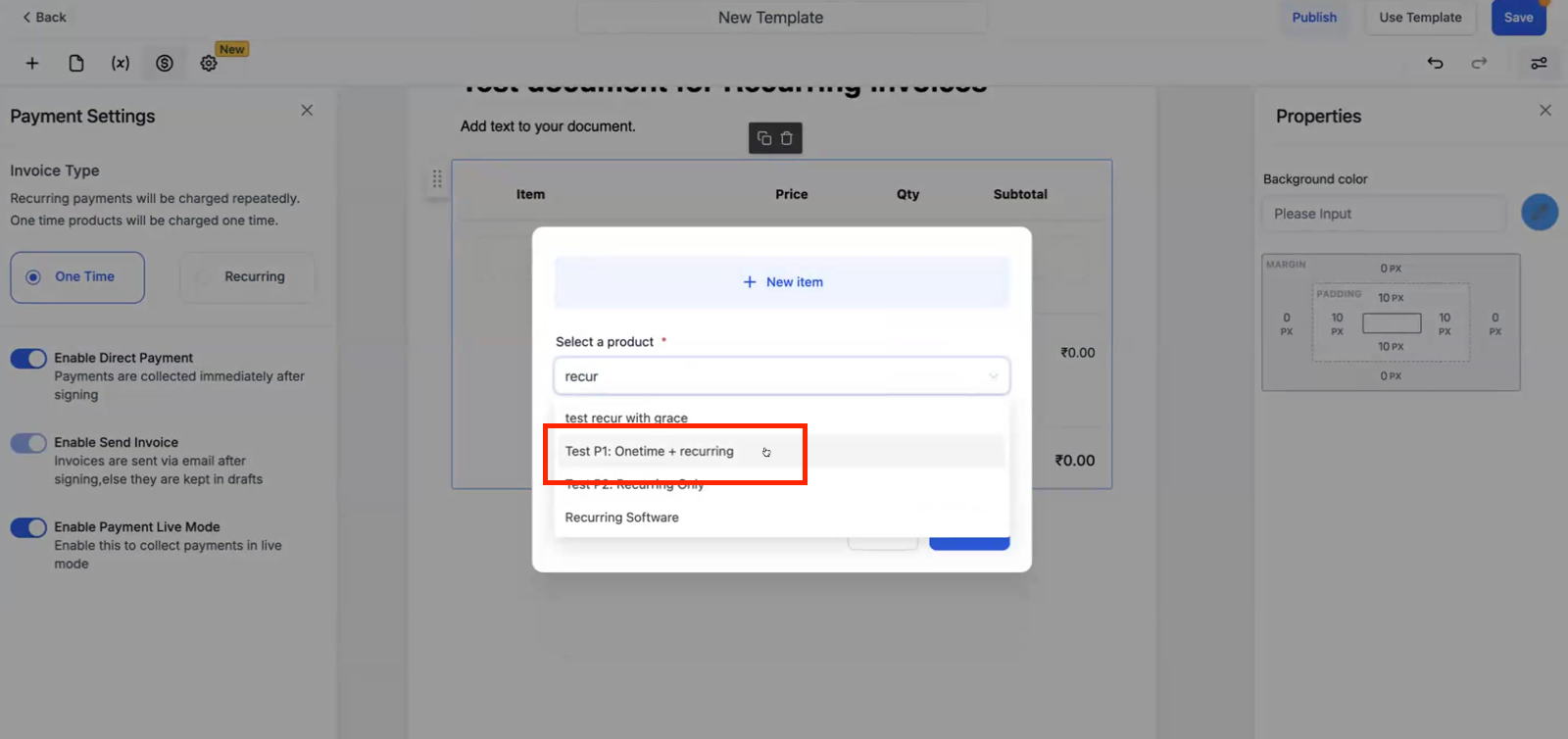
- Add a recurring product to the product list.
- The settings drawer will automatically open for configuration.
4. Distinguish Product Types:
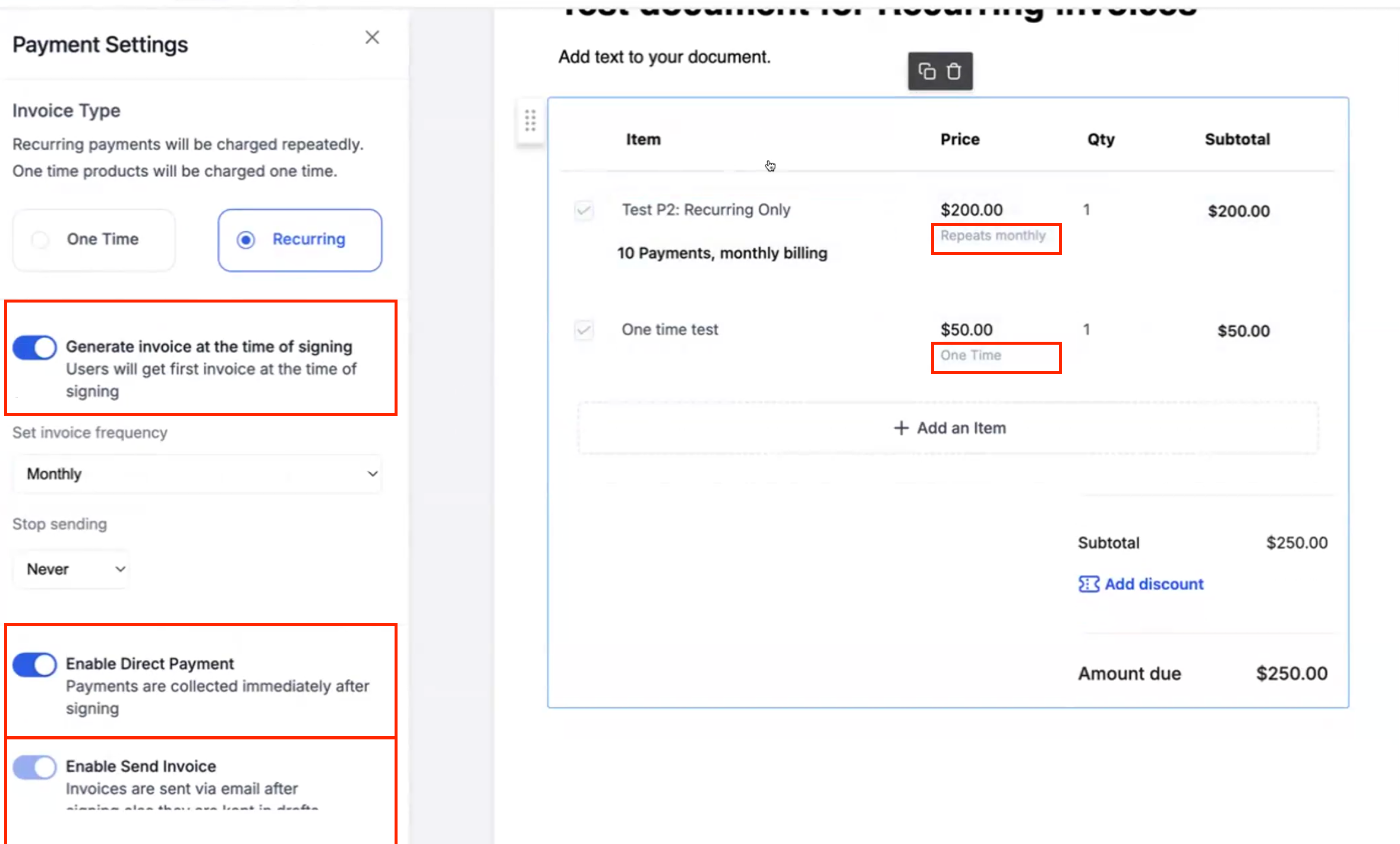
- The product list will display distinctions between one-time and recurring products.
- Note:
- One-Time Products: Always treated as one-time payments.
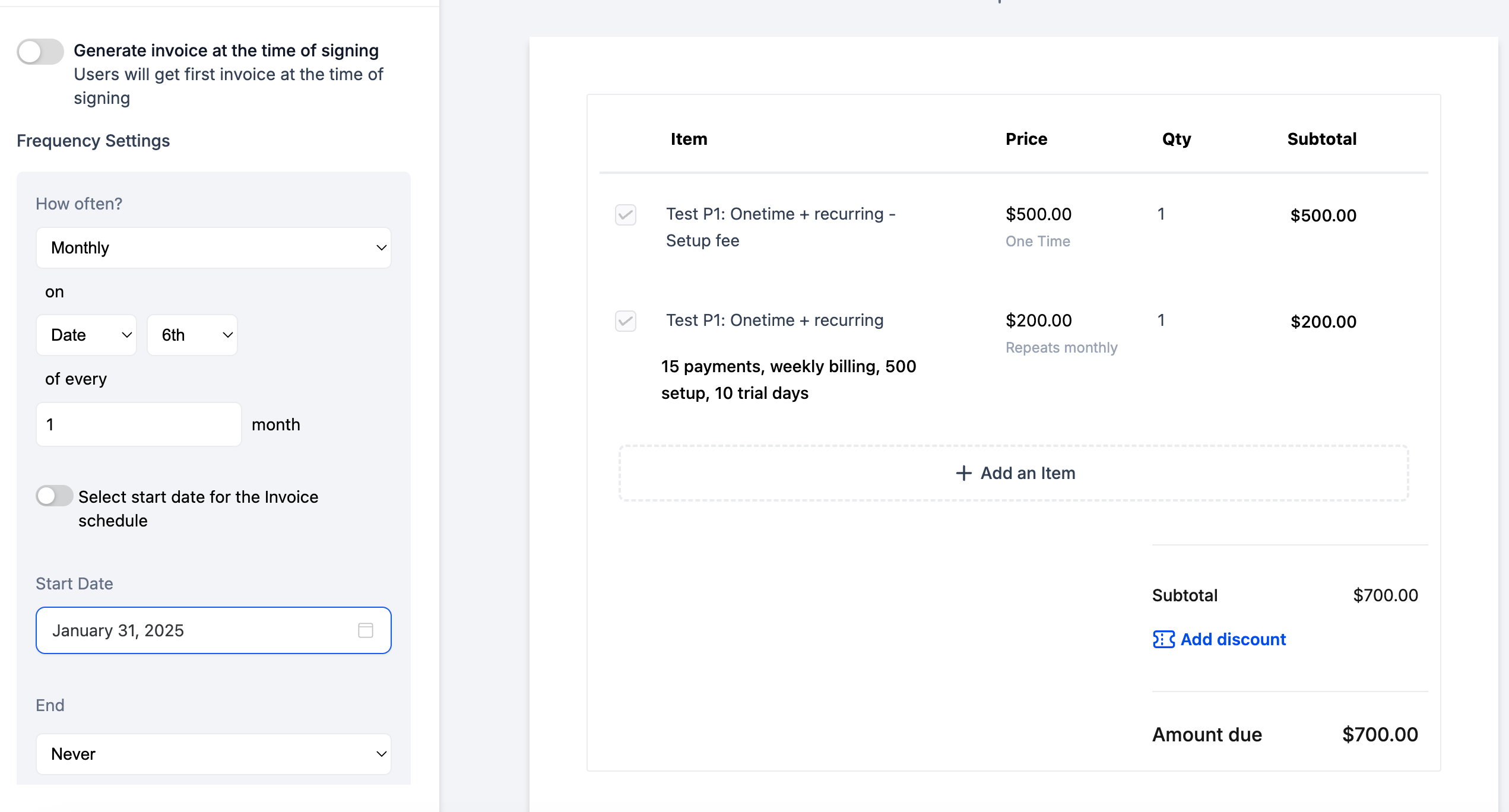
- Recurring Products with Setup Fee: Displayed as two line items—one for the recurring payment and another for the one-time setup fee.
- Only recurring products will be billed in subsequent invoices sent
Configuring Recurring Invoice settings within the product list #
- Generate Invoice at Signing:
- Toggle On:Creates a recurring invoice schedule with the first invoice generated at the time of signing. Subsequent invoices follow the defined frequency (e.g., monthly).
- Example: If a document is signed on January 25th with a monthly schedule, the next invoice is sent on February 25th.
- Toggle Off: Allows users to set a specific date for the invoice to be sent, regardless of the signing date.
- Toggle On:Creates a recurring invoice schedule with the first invoice generated at the time of signing. Subsequent invoices follow the defined frequency (e.g., monthly).
- Enable Direct Payment:
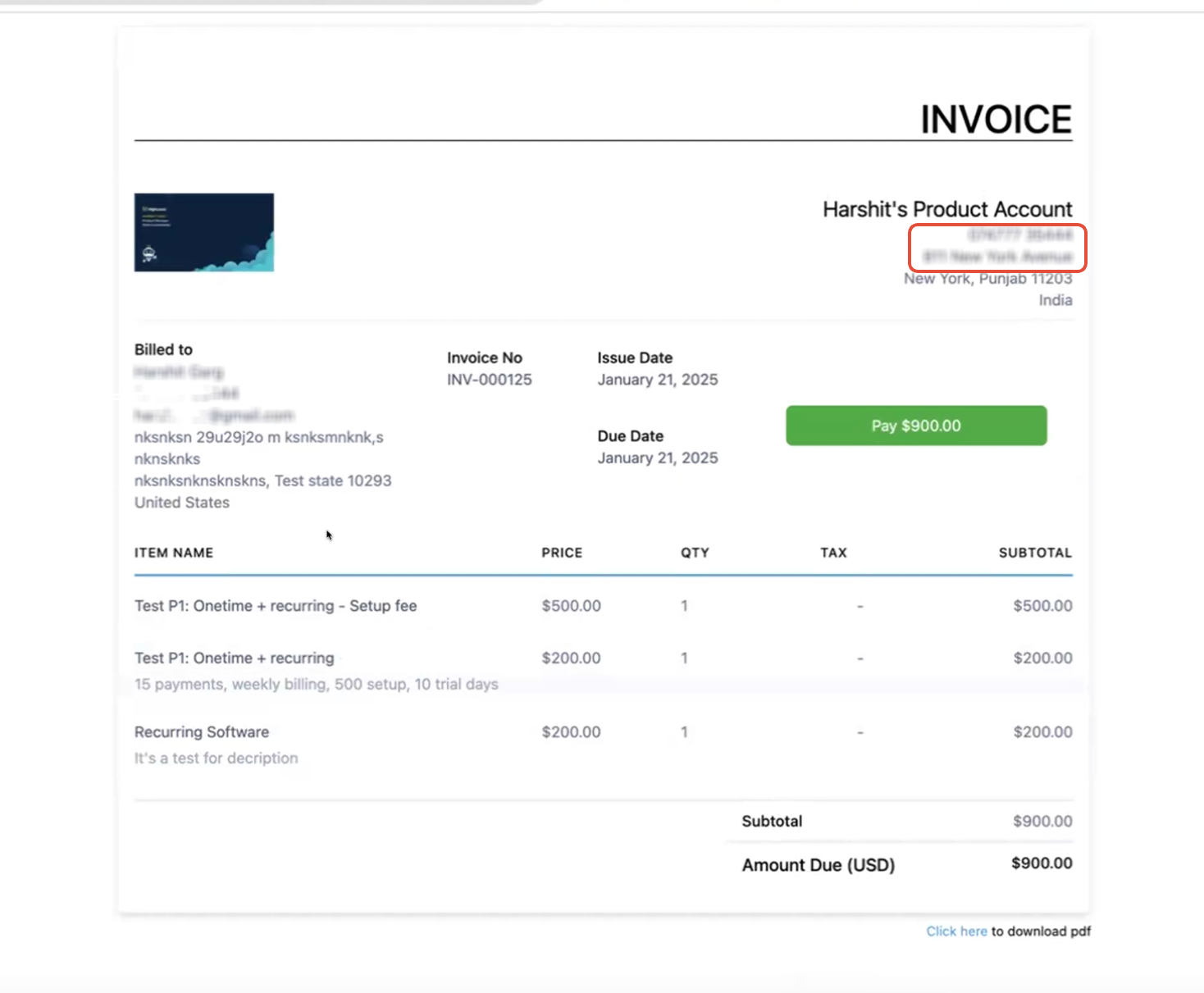
- Toggle On: Redirects the primary signer directly to the invoice page after signing and sends an email with the invoice.
- Toggle Off: The invoice is saved as a draft and can be sent manually later.
Workflow Configuration #
1. Save the Template:
- After configuring, save your template.
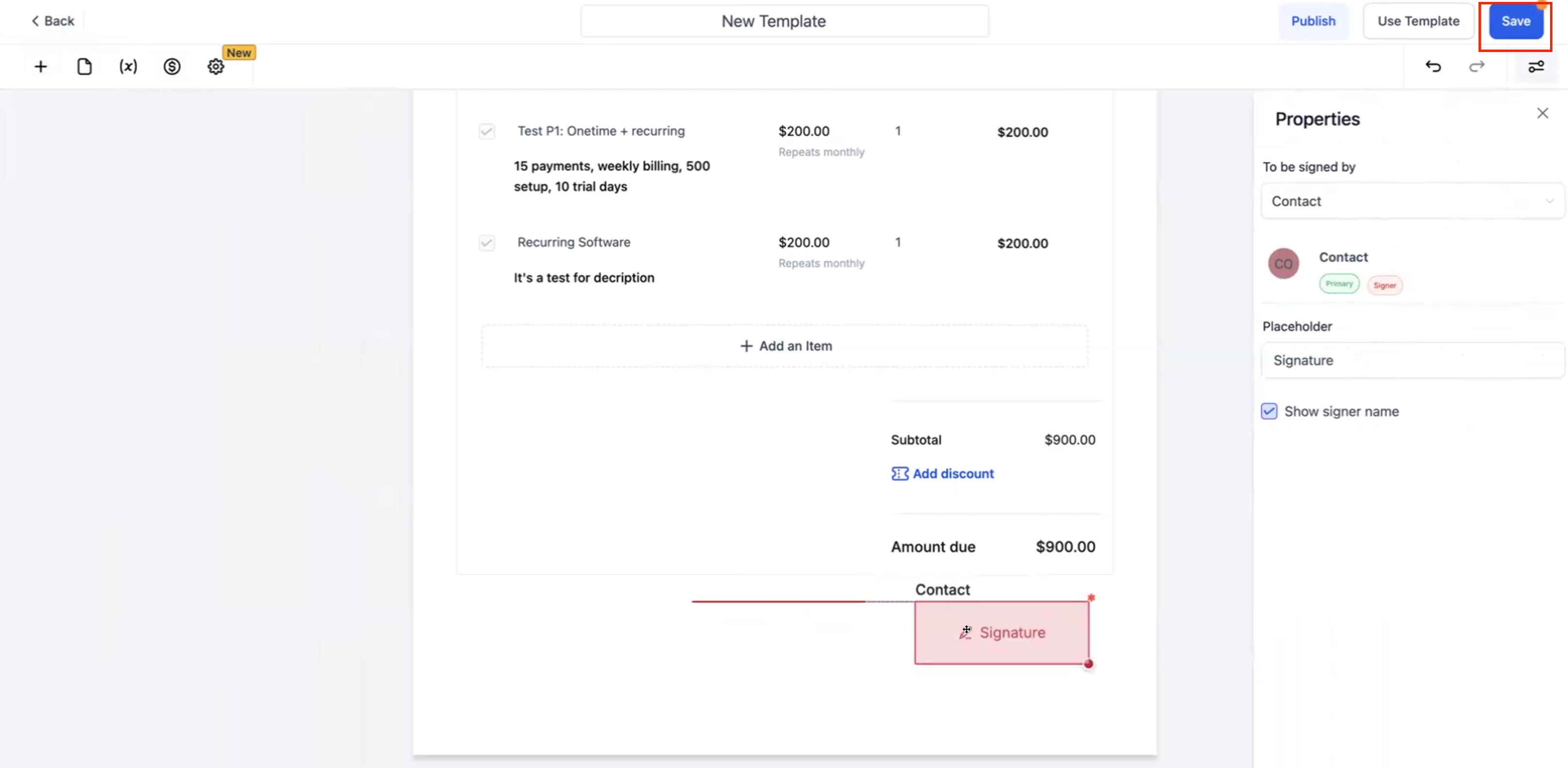
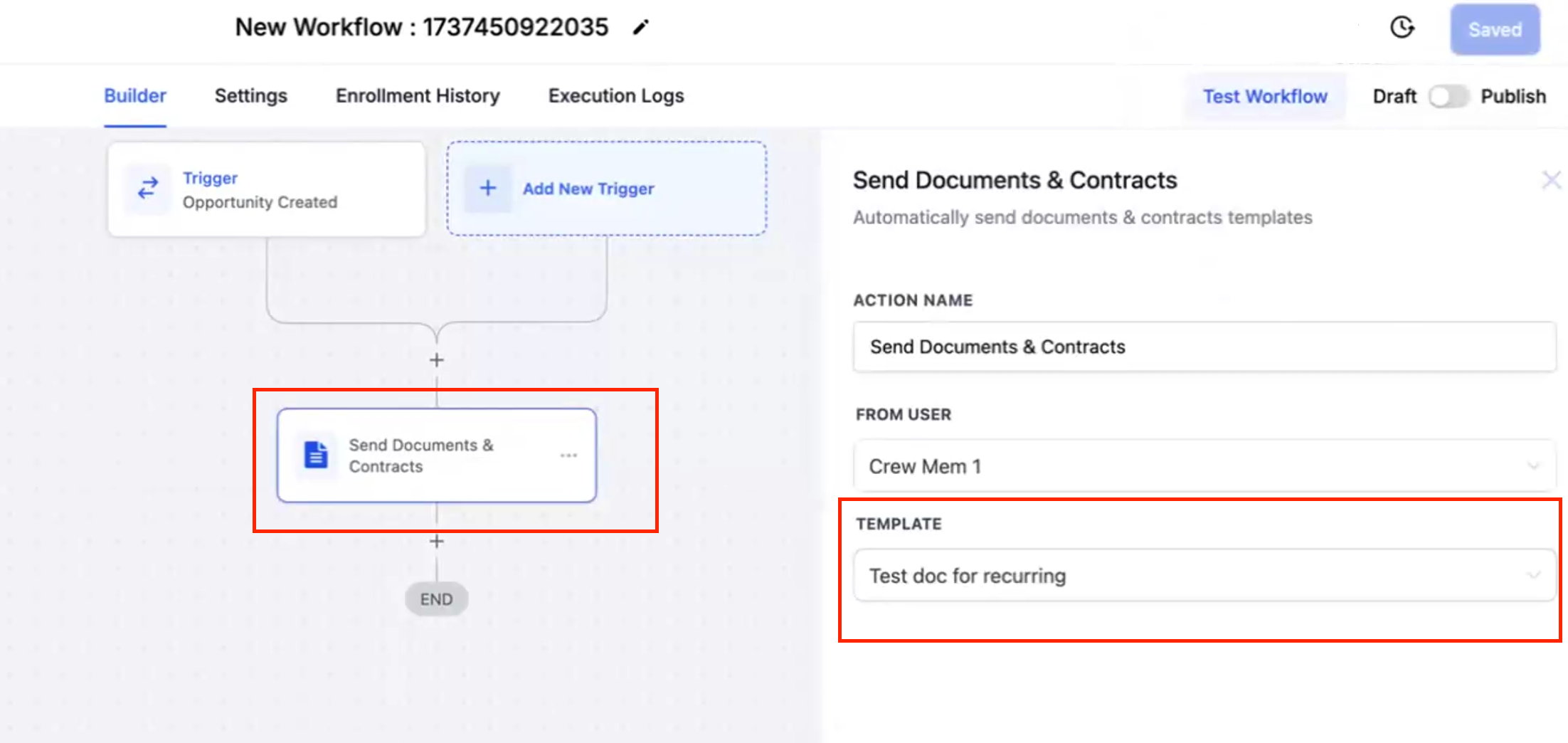
2. Configure Workflow:
- Go to Workflows and set up a new workflow using the saved template.
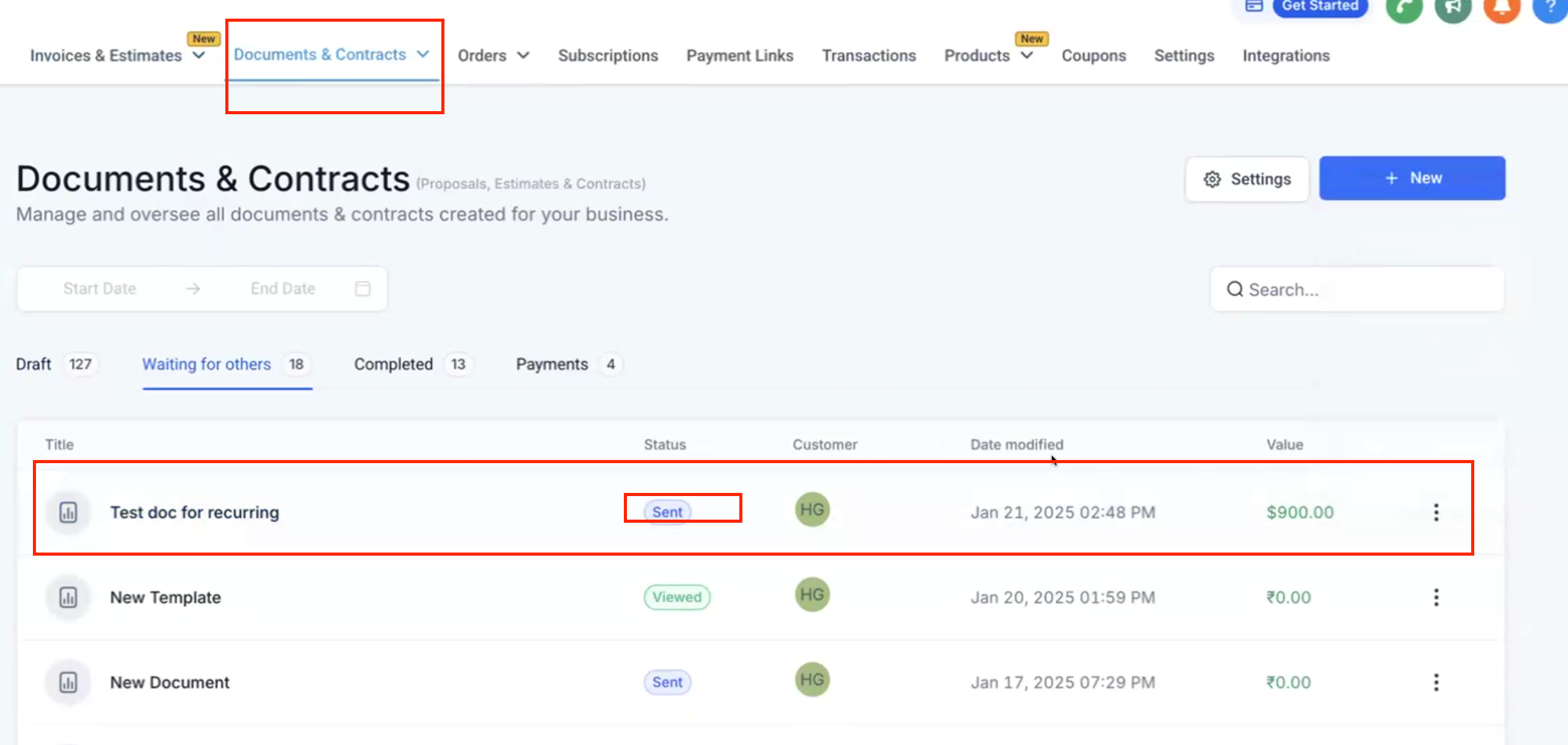
3. Send and Complete:
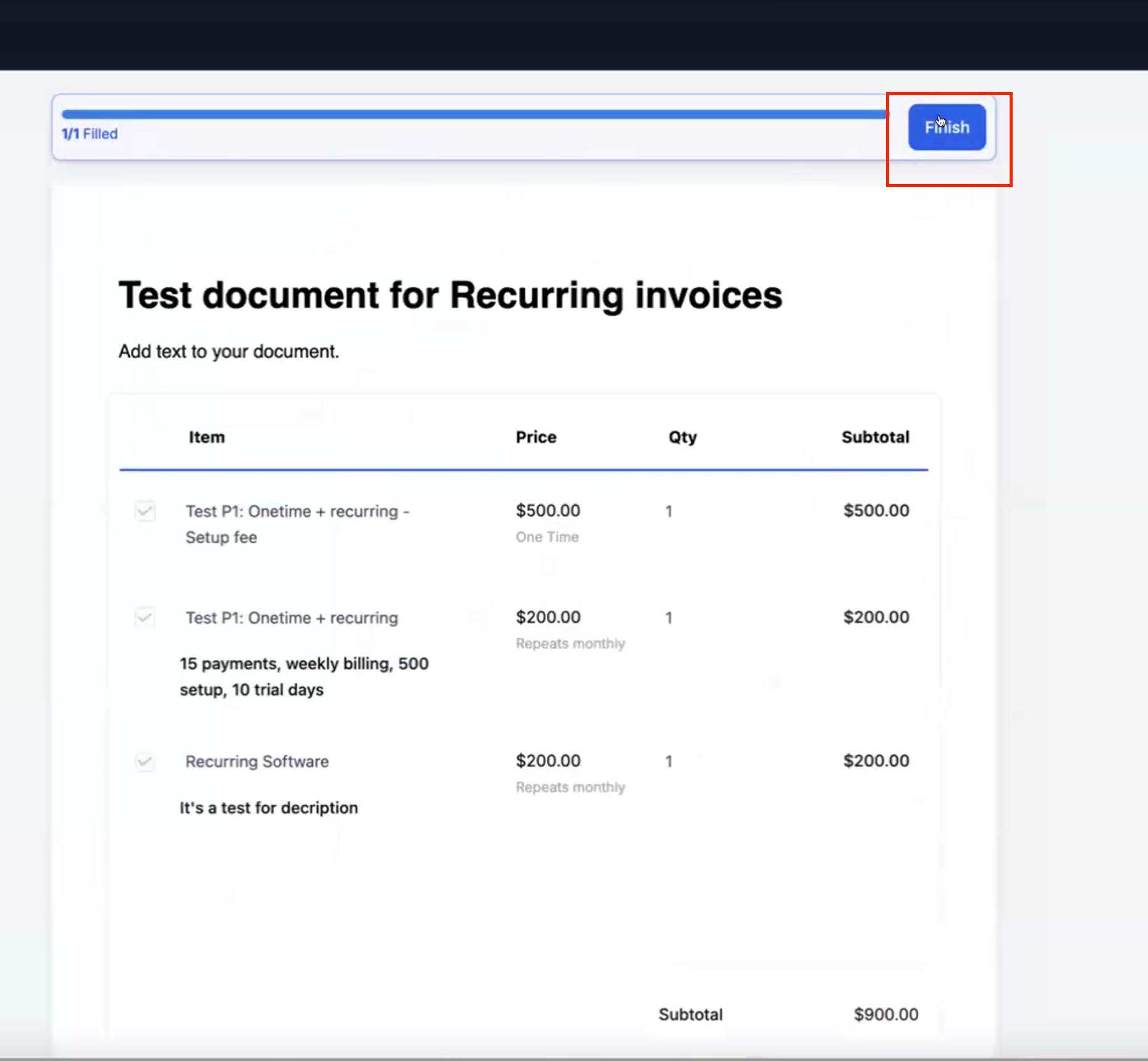
- Once the workflow is triggered, the signer receives the document with the attached invoice.
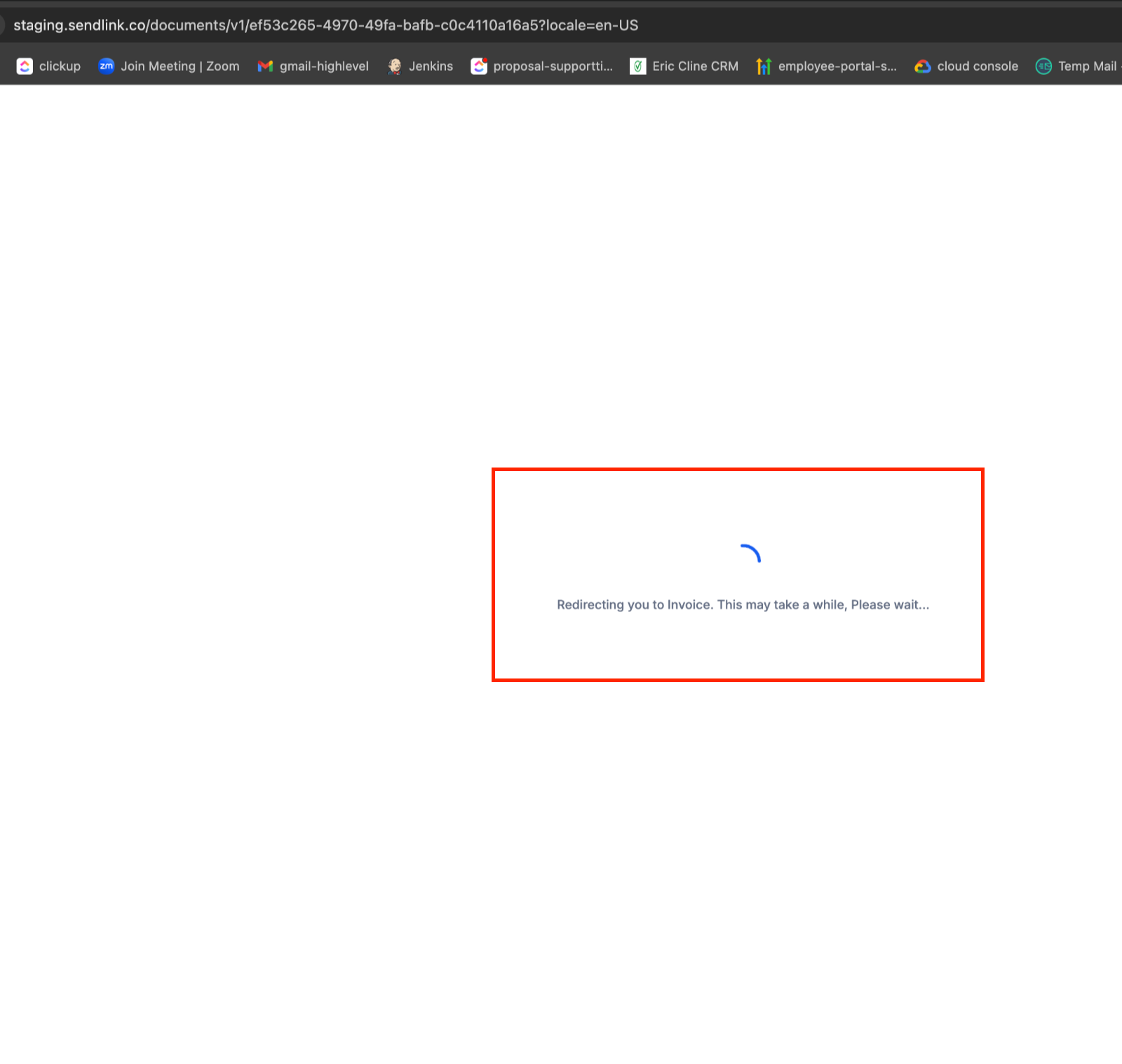
- After signing, the primary signer is redirected to the invoice for immediate payment. An email with the invoice is also sent as a backup.
4. Track Payments:
- Monitor payments through the Documents section or the Invoices section.
Why We Built It #
Our goal was to simplify the contract signing and payment process by integrating recurring invoice generation directly into Document & Contract workflows.

