
Overview #
The “Stripe One Time Charge” action allows you to trigger a one-time charge in Stripe for a fixed amount to a specific customer within your Stripe account. This action is useful for collecting payments without requiring recurring subscriptions or payment plans.
Action Name #
Stripe One Time Charge
Action Description #
This action triggers a one-time charge in Stripe for a set amount to a designated customer. It requires a valid Stripe Customer ID, amount, description, and currency to process the charge.
Action Details #
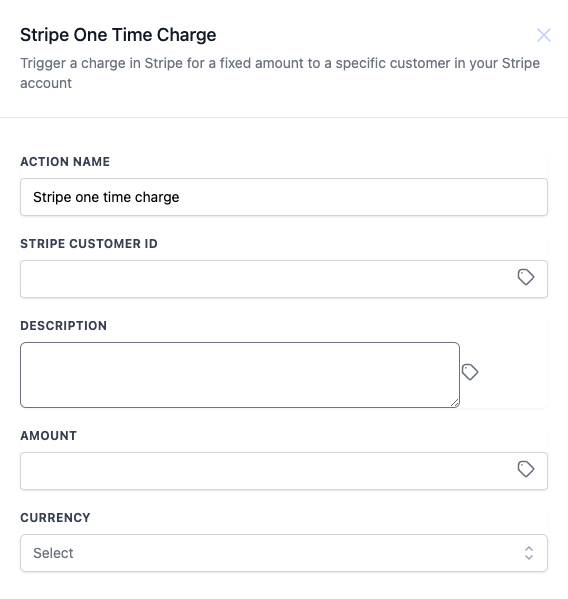
How to Configure #
- Action Name: Set a recognizable action name, such as “Stripe One Time Charge.”
- Stripe Customer ID: Enter or select the Stripe Customer ID for the customer to be charged.
- Description: Provide a brief description of the charge (optional).
- Amount: Enter the amount to charge the customer.
- Currency: Select the appropriate currency for the transaction.
| Field Name | Description | Mandatory |
| Stripe Customer ID | The unique identifier for the Stripe customer to be charged | Yes |
| Description | A description of the charge (e.g., for tracking or notes) | No |
| Amount | The amount to be charged to the customer | Yes |
| Currency | The currency in which the amount will be charged | Yes |
Example #
A business could use this action to charge a customer for a single service, such as a one-time consultation fee of $150, with USD as the currency. After the payment is triggered, the amount will be processed through Stripe and linked to the specified customer’s account.
Suggested Triggers #
Here are some suggested triggers to use with the “Stripe One Time Charge” action:
- Form Submission: Automatically charge a customer when they submit a form indicating that they are ready to make a purchase or request a service.
- Tag Added: Trigger a one-time charge when a specific tag (e.g., “Ready to Purchase”) is added to the customer’s profile.
- Appointment Confirmed: Charge customers automatically after confirming an appointment for services.
- Order Completed: Trigger a charge when an order is marked as completed within your system.
- Email Link Clicked: Automatically charge customers who click a payment-related link in an email.
Additional Notes #
- Make sure you have set up Stripe integration in your system before using this action.
- Ensure the Stripe Customer ID is valid to avoid charge failures.
- Use this action for one-time payments only. For recurring payments, consider other Stripe-related actions like subscriptions.

