
Overview #
The “Pluck and Join” feature in workflows allows you to dynamically pull product details, such as titles, from order submissions and format them into a single string. This feature is especially useful for automating order management, syncing product information with external systems, or updating data logs like Google Sheets. Similar to any custom field, users can now use Pluck and Join to format the data.
This article will talk about fetching product details such as items from orders submitted and send this data to google sheets or any other platform.
Description #
This feature allows users to use helpers such as pluck and join in workflows. The pluck helper extracts specific fields (e.g., product titles) from an array of objects, while the join helper combines these values into a single string with a custom separator. These are helpful for automating data extraction and formatting across data.
Step-by-Step Guide #
- Choose the Trigger:
- Start by setting up a workflow trigger, such as
Order Form Submitted or Inbound webhook, or any trigger that have a list of data – to initiate the workflow when an order is placed.
- Start by setting up a workflow trigger, such as
- Set Up an Action:
- Example: Use the “Create Row in Google Sheets” action to log customer and product details.
- Customer Name: Use
{{ contact.first_name }}. - Email: Use
{{ contact.email }}. - Products: Use the combined string created in the next step.
- Customer Name: Use
- Example: Use the “Create Row in Google Sheets” action to log customer and product details.
- Add Data Processing Logic:
- Use the
pluckhelper to extract the product titles from the order’sline_itemsarray.{{ pluck order.line_items "title" }} - Use the
joinhelper to combine these titles into a single, formatted string.{{ join (pluck order.line_items "title") ", " }}
- Use the
- Test and Validate:
- Before finalizing, run a test to ensure the workflow processes data as expected. Use tools like Postman or live order submissions to confirm correct output.
- List of fields available:
- title,
- image,
- price,
- quantity,
- line_subtotal,
- line_discount,
- line_price,
- meta
- product_id,
- price_id,
- order_id / invoice_id
Example pluck – {{pluck payment.line_items “title”}} , {{pluck payment.line_items “line_subtotal”}} , {{pluck payment.line_items “meta.product_id”}}
To pluck any other value, replace the field in the above example pluck
Example #
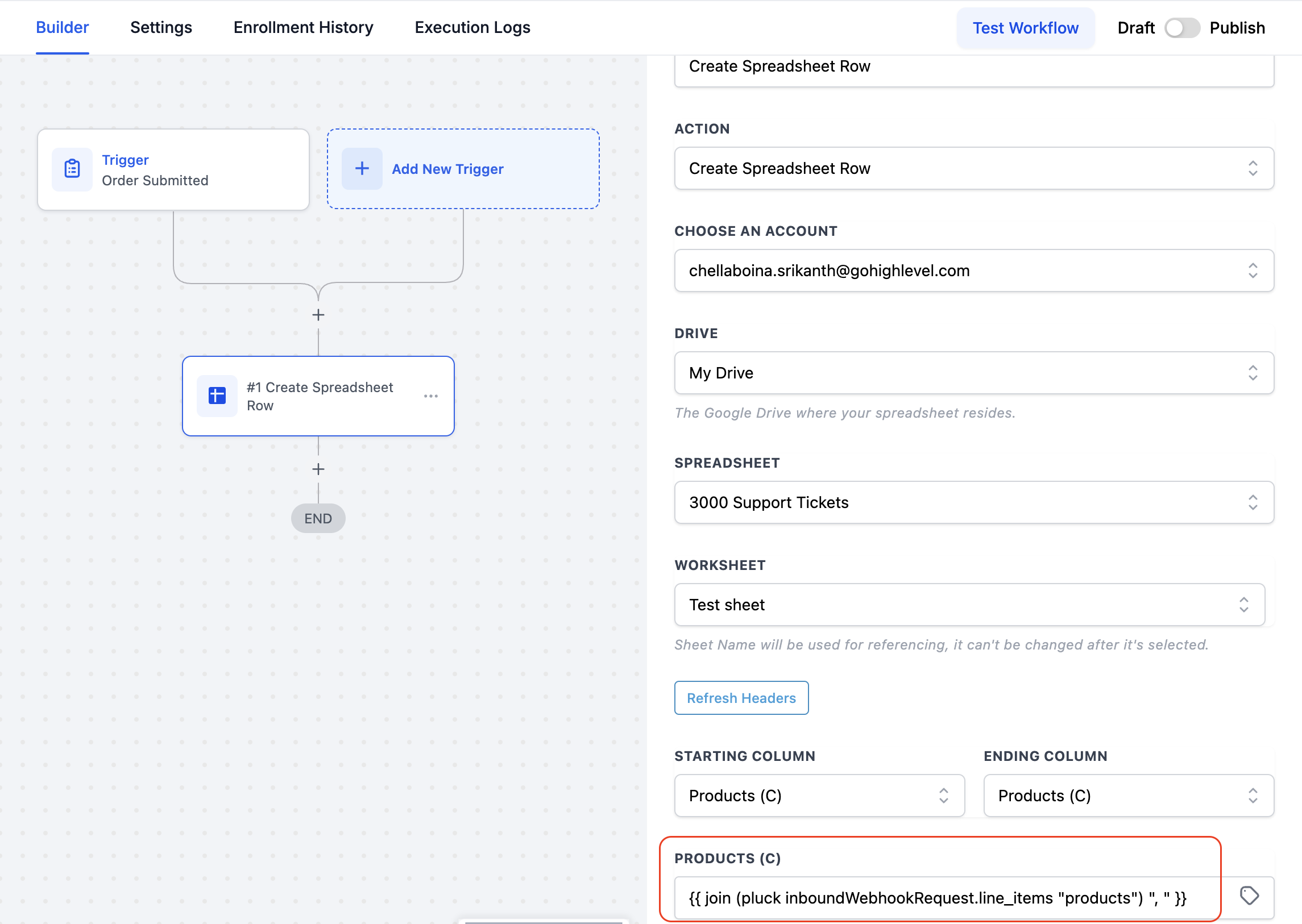
Scenario #
You want to log order details into a Google Sheet whenever a customer submits an order form. This log should include the customer’s name, email, and a formatted list of purchased products.
Steps #
- Create Workflow Trigger:
- Use the
Order Form Submittedtrigger to start the workflow.
- Use the
- Use Pluck and Join helpers:
- Extract product titles using the
pluckhelper{{ pluck order.line_items "title" }} - Format the titles using the
joinhelper{{ join (pluck order.line_items "title") ", " }}
- Extract product titles using the
- Add Google Sheets Action:
- Select the “Create Row in Google Sheets” action.
- Map the fields:
- Name:
{{ contact.first_name }} - Email:
{{ contact.email }} - Products:
{{ join (pluck order.line_items "title") ", " }}
- Name:
- Test and Activate the Workflow:
- Submit a test order form and confirm that the order details appear correctly in the Google Sheet.
Example Output #
Google Sheet Example:
| Name | Products | |
|---|---|---|
| Alice | alice@test.com | TEST OFFER, ANOTHER PRODUCT |
| Bob | bob@test.com | SINGLE ITEM |
By using pluck and join helpers, you can efficiently extract and format product data for seamless workflow automation and integration. This feature saves time, reduces manual effort, and enhances the usability of your workflows.

